Use Shortcodes and Direct Links
HelpGent gives you two quick ways to share a published form: embed it in WordPress with a shortcode, or send visitors directly to the form URL. Use the shortcode when the form belongs inside a page and use the direct link when you want to share it by email, chat, or social media.
Open the sharing options
- Open the form from HelpGent → All Forms.
- Select the Share tab in the form builder.
- Choose Share the link or Short code from the left panel.
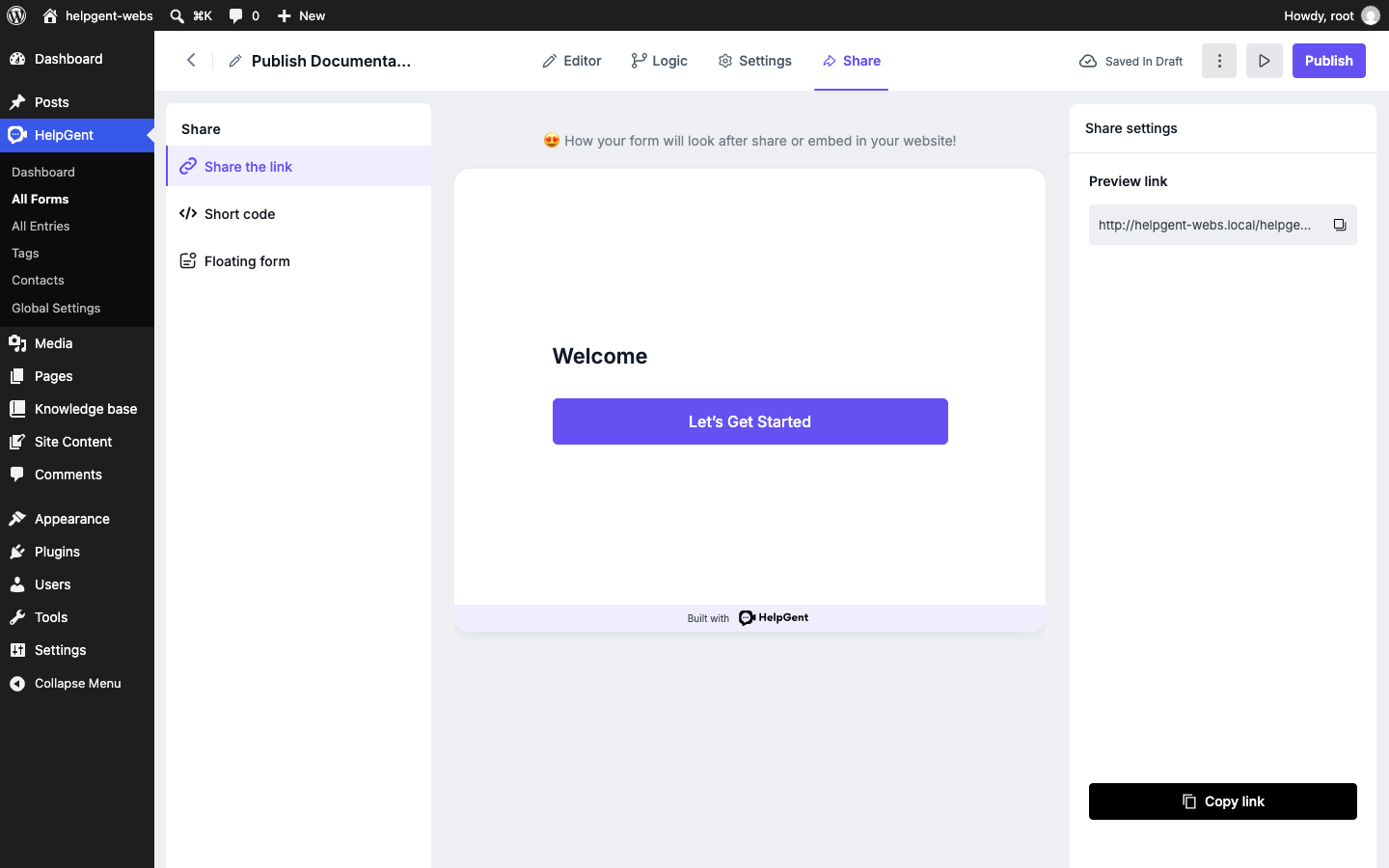
Share a direct link
- Choose Share the link.
- Review the link shown under Share settings. Published forms use the label Direct link; drafts use Preview link.
- Select the copy icon in the link field or select Copy link.
- Paste the link into an email, a button, a support reply, or a social post.
The publication confirmation panel provides the generated shortcode and Copy Code. To copy the public URL, open Share → Share the link and use the current Direct link field.
Embed the form with a shortcode
- Choose Short code in the Share tab.
- Copy the generated shortcode.
- Paste it into a WordPress Shortcode block, post, page, or supported builder field.
- Save or publish the WordPress content.
The generated shortcode uses your form ID, for example
This form is currently unavailable.
Please try again later or contact the site owner.
. HelpGent also provides a Default width & height display option in the Short code settings when you want the embedded form to use its default dimensions.
Choose the right method
| Method | Use it when |
|---|---|
| Direct link | You want one shareable URL for email, chat, campaigns, or social media. |
| Shortcode | You want the form to appear inside a WordPress page or post. |
| Floating form | You want a chat bubble or floating control available across selected pages. |
To make a shortcode form fill its available embedding container, see Configure Full-Screen Forms.