Build a Presenter-Led Video Funnel from a Script
Use an AI Video Funnel when you want a presenter-led experience that guides visitors through questions, product information, lead qualification, or an application. You provide the presenter image and script, then refine the generated form before sharing it.
Before you start
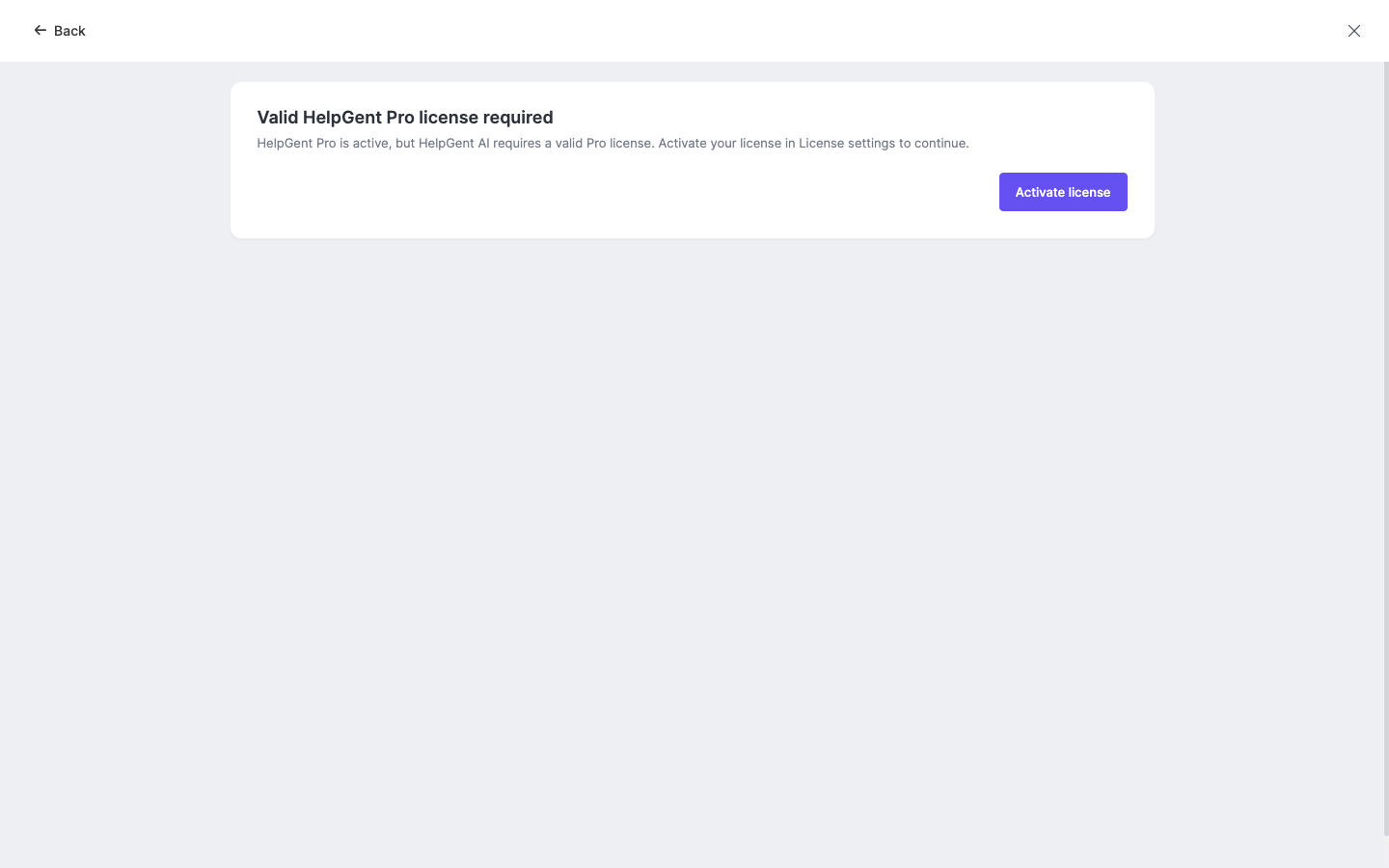
- Install HelpGent Pro and activate a valid Pro license.
- Connect HelpGent AI and make sure your account has enough AI credits.
- Prepare a clear script and a suitable presenter image.
Start the video funnel
- Go to HelpGent → All Forms.
- Select Add New Form.
- Choose AI Video Funnel.
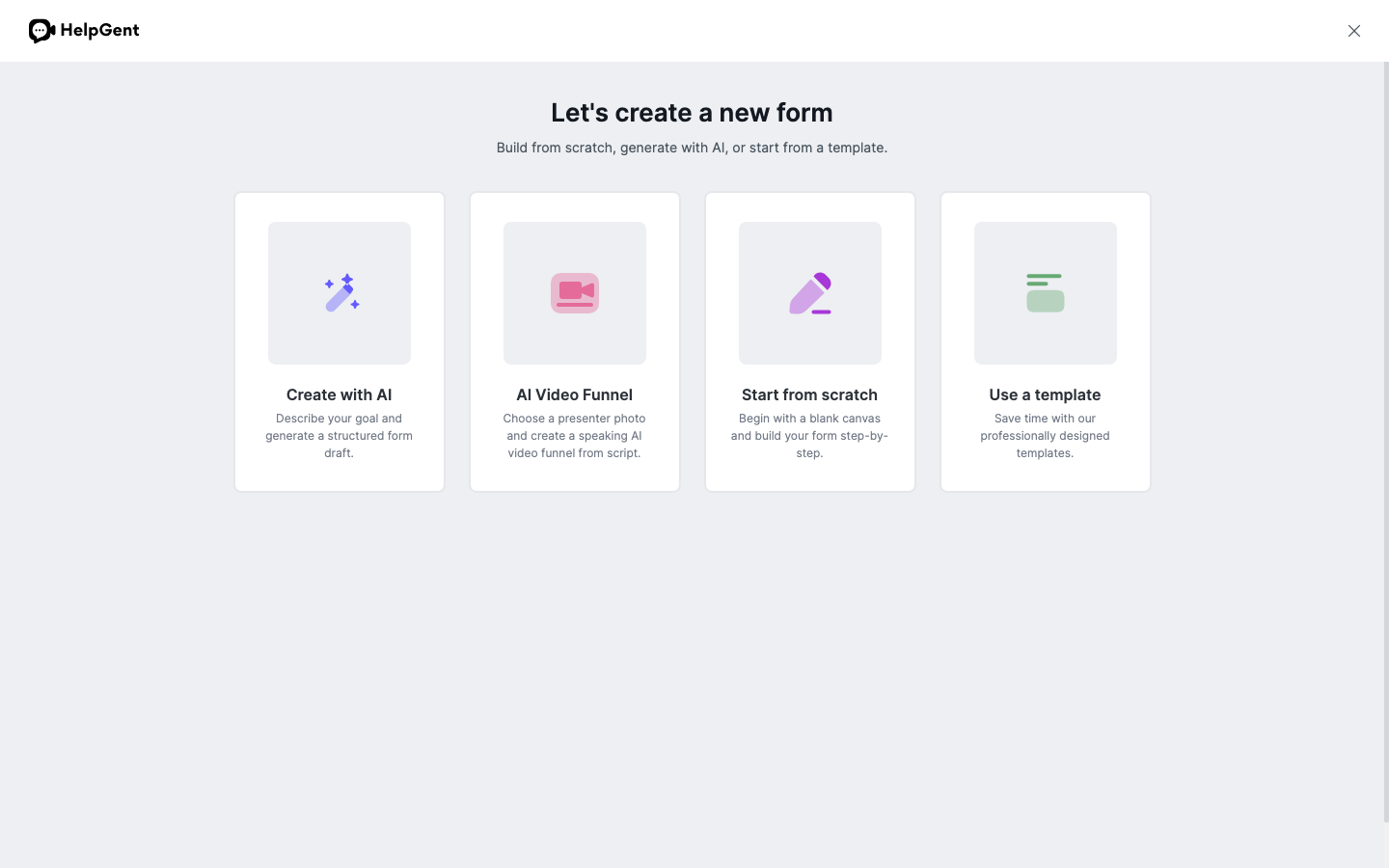
- Choose the presenter photo requested by the setup screen.
- Enter or paste the script the presenter should deliver. Keep the script focused on one visitor goal, such as qualifying a lead or collecting a product question.
- Continue through the generation step and wait for the video funnel draft to be prepared.
- Review the generated screens, questions, and transitions in the builder. Adjust the form content so the visitor knows what to do after watching or responding.
- Save, preview, and publish the funnel when the visitor flow is ready.
Use the funnel for your workflow
Agencies can use a presenter to collect project requirements, ecommerce stores can answer product questions, coaches can qualify leads before a call, and recruiters can guide applicants through a video application. Keep the script aligned with the questions that follow it so the funnel feels like one conversation.
Verify the result
- The video funnel opens in the HelpGent builder with its generated presenter content.
- The script, questions, and next steps are accurate and easy to follow.
- The published form plays correctly and accepts the visitor’s response.
Note: An active HelpGent Pro license and HelpGent AI connection are required. If the setup screen shows Valid HelpGent Pro license required, return to HelpGent → Global Settings → License Key, activate the license, and reopen the AI Video Funnel flow.