Set Up the Visitor Dashboard
The visitor dashboard gives users one place to find their HelpGent conversations and continue a discussion after submitting a form. HelpGent creates a Dashboard page during setup and stores that page in its global settings.
Choose the dashboard page
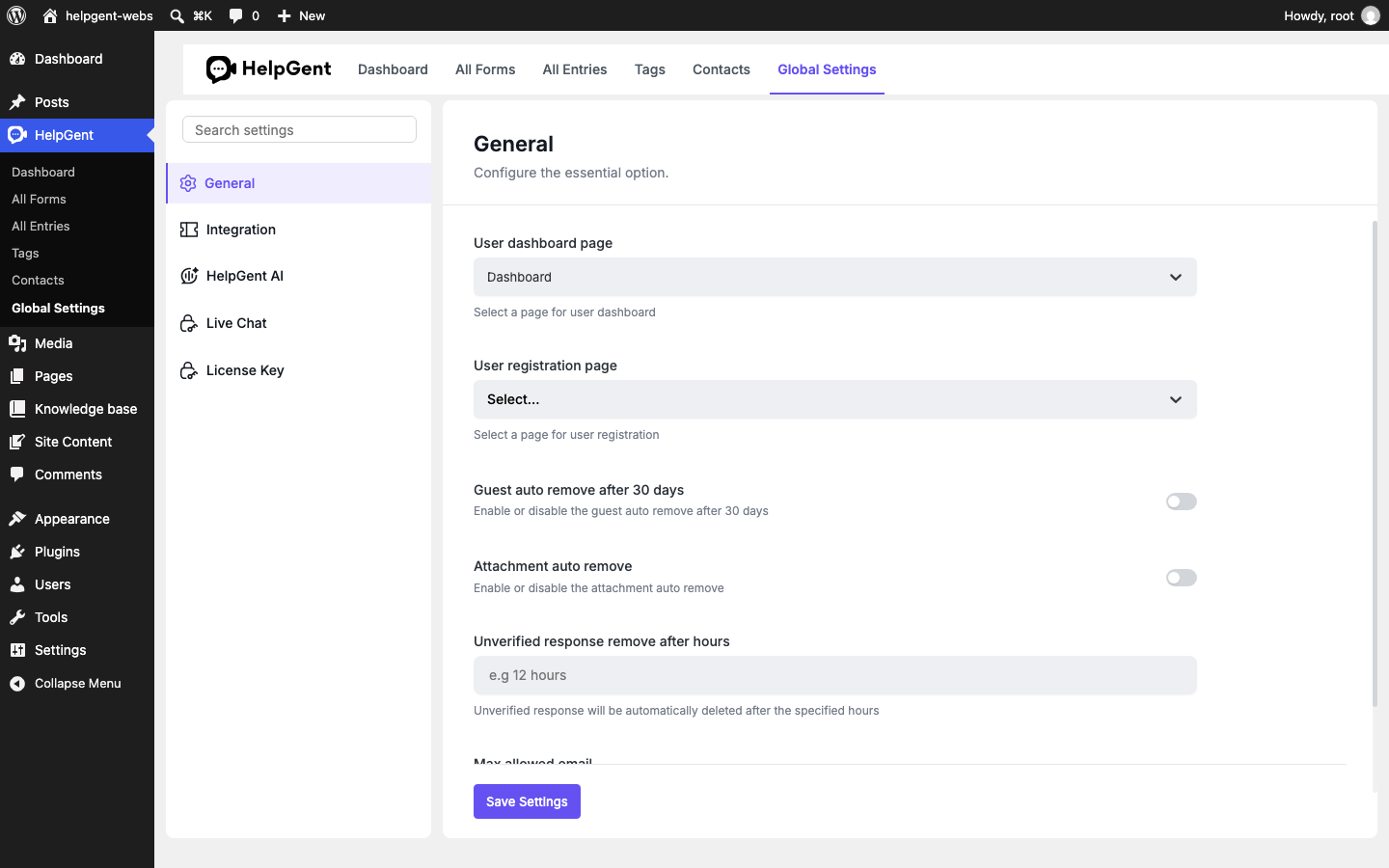
- From WordPress, go to HelpGent → Global Settings.
- Open General.
- Find User dashboard page.
- Select the WordPress page that should contain the dashboard. HelpGent normally creates a page named Dashboard.
- Select Save Settings.
Understand the dashboard page
The automatically created Dashboard page contains the
shortcode. You can open the page from Pages to confirm the shortcode is present, then use the page URL in your visitor emails or account area.
HelpGent also supports the
shortcode for rendering the same visitor dashboard experience in another page.
What visitors see
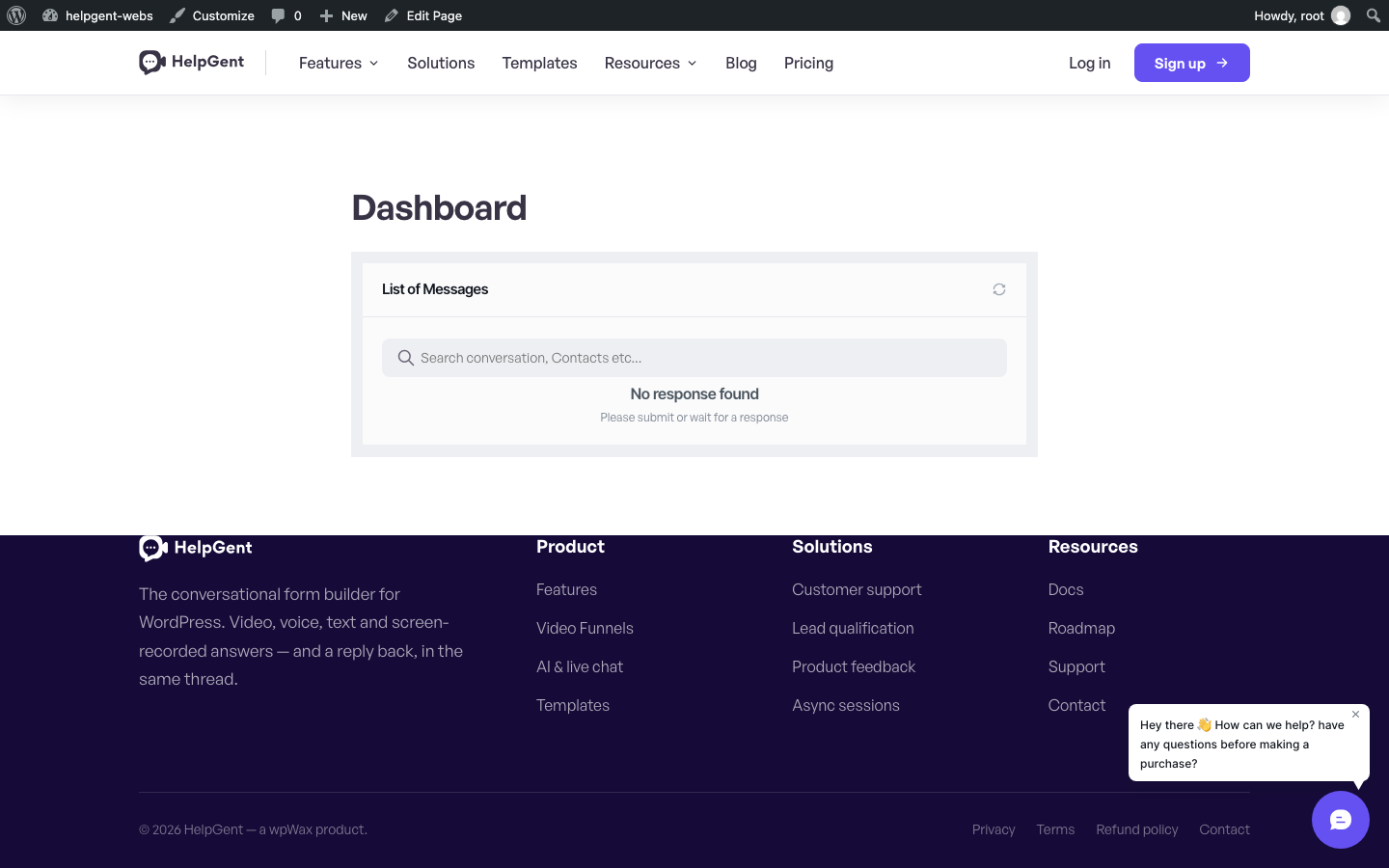
Visitors see a message list with a search field for conversations and contacts. Selecting a conversation opens its messages and available follow-up actions. Before the first response, the dashboard shows an empty message state.
Share the dashboard with visitors
- Include the Dashboard page link in your confirmation or follow-up message.
- Use the link provided in HelpGent email messages when a visitor needs to return to a conversation.
- Keep the dashboard page easy to find from your site navigation when visitors will use it regularly.
Verify the result
- Open the selected dashboard page on the frontend.
- Confirm that the HelpGent message list loads.
- Submit a test response and return to the dashboard.
- Search for the conversation by contact or conversation details.
For form-level sharing options, see Use Shortcodes and Direct Links.