Manage Attachments
Use the response view to review files and media connected to a visitor’s submission or conversation. Attachments can include uploaded files, voice replies, video replies, screen recordings, and links shared in messages.
Before you start
- Open HelpGent → All Entries.
- Select the response that contains the files or media you want to review.
Open the response attachments
- Open the response conversation.
- Select Attachments in the response header.
- Review the files associated with the response and its messages.
- Select an attachment to open or preview it when the file type supports in-browser viewing.
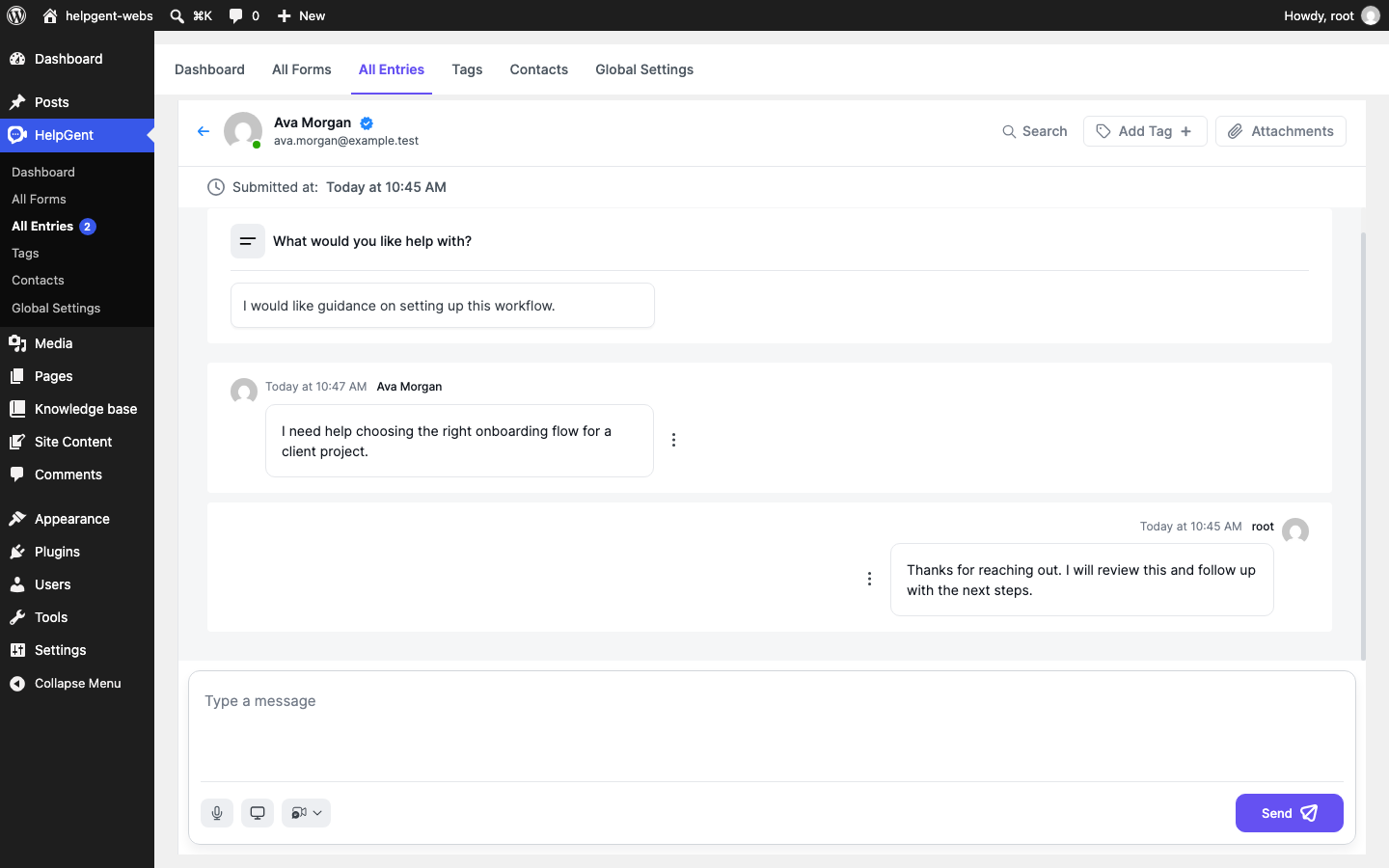
Add an attachment to a reply
- In the reply composer, choose the control for the media type you want to send.
- For video, choose Upload a video and select a file from your device.
- For voice, screen, or camera replies, complete the recording flow.
- Review the preview and select Send.
HelpGent adds the media to the conversation as part of the message you send.
Review attachment types
| Type | Examples |
|---|---|
| All | Every attachment associated with the response. |
| Voice | Voice recordings sent in the conversation. |
| Video | Camera videos and screen recordings. |
| Link | Links shared in conversation messages. |
Verify the result
- The attachment is visible from the response’s Attachments view or the message that contains it.
- Media opens in the appropriate player or preview.
- The attachment remains connected to the response conversation.