Set Up Live Chat
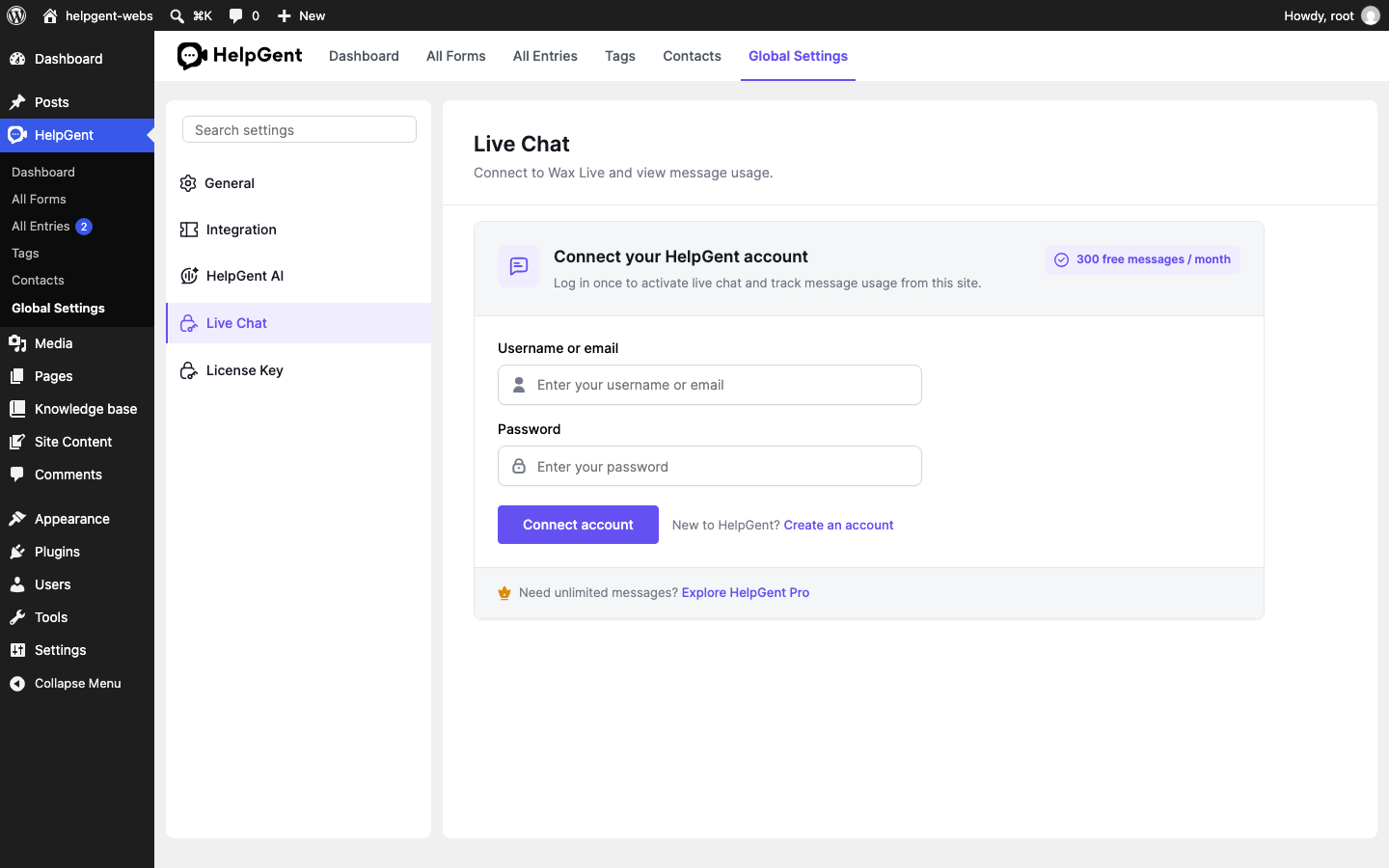
Live Chat connects your HelpGent site to Wax Live so visitors and your team can exchange messages in real time. The connection also lets HelpGent show message usage…
Live Chat connects your HelpGent site to Wax Live so visitors and your team can exchange messages in real time. The connection also lets HelpGent show message usage for the site.
Pro feature: Live Chat requires a connected HelpGent account. HelpGent displays a free monthly allowance in the connection panel.
Connect your account
- Go to HelpGent → Global Settings → Live Chat.
- Enter your HelpGent username or email and password.
- Select Connect account.
- Wait for the connection confirmation before leaving the page.
Use Live Chat in a form
- Open the form where you want to offer live chat.
- Add the Live Chat element or enable the live-chat experience supported by the form.
- Publish or update the form.
- Open the public form and send a test message.
When the account is connected, HelpGent can send and receive live-chat messages through Wax Live. Keep the account credentials private and use the account intended for this site.
Verify the result
- The Live Chat settings panel shows a connected state.
- A test visitor can send a message.
- The message appears in All Entries and can be answered by your team.