Understand Entries, Responses, and Conversations
HelpGent keeps each form submission and its follow-up messages together. This makes it easier to review what a visitor submitted, continue the conversation, and see who is handling the reply.
Before you start
- Create and publish at least one HelpGent form.
- Open HelpGent → All Entries with an administrator or HelpGent Agent account.
Open the response inbox
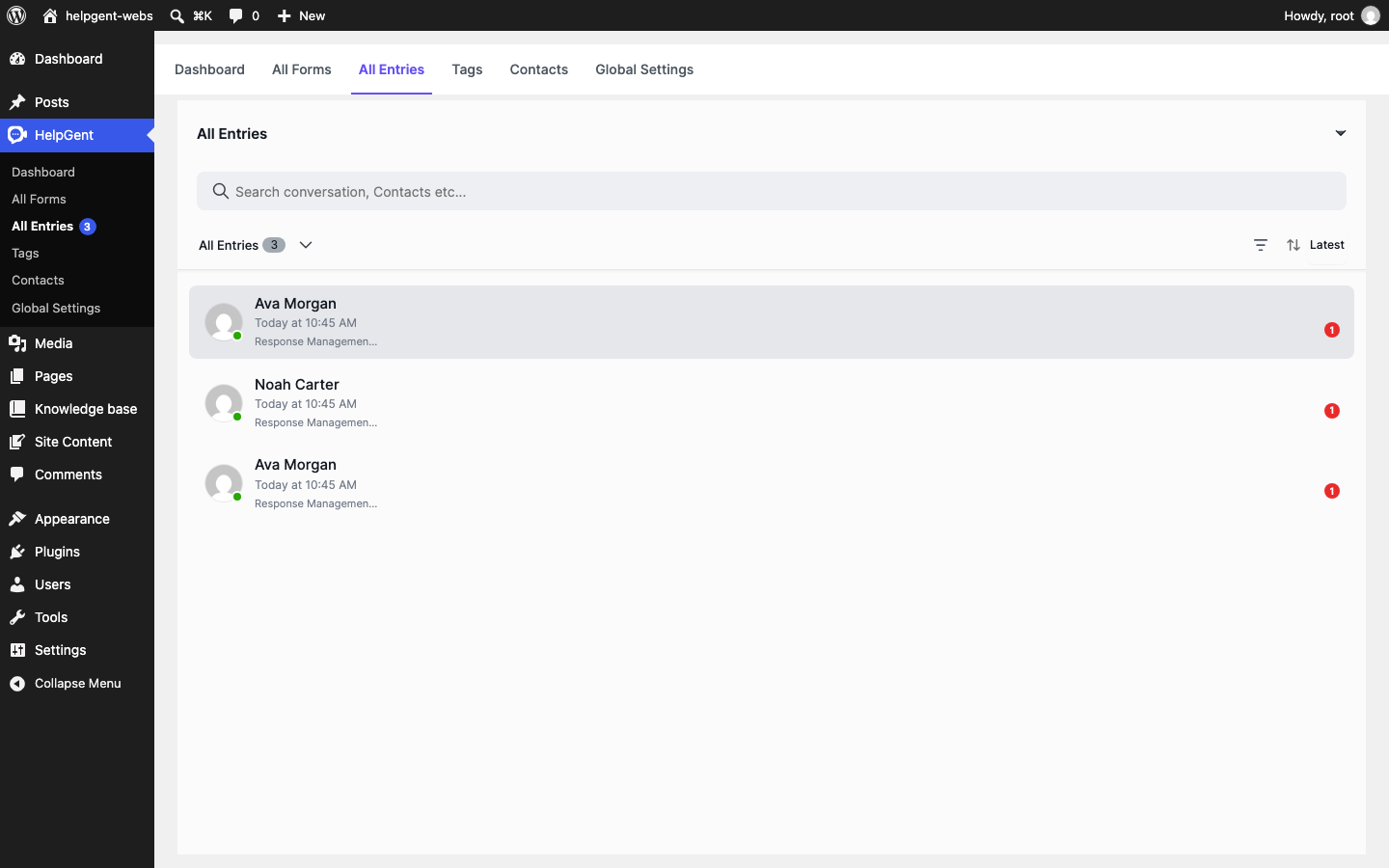
- Go to HelpGent → All Entries.
- Review the response cards. Each card shows the visitor name, submission time, form name, and an unread indicator when new activity is waiting.
- Select a response card to open its details.
What each term means
| Term | What it contains | Where you see it |
|---|---|---|
| Entry | A visitor’s submission to a HelpGent form. | The response list in All Entries. |
| Response | The stored record for one entry, including its status, submitter, answers, and activity. | The response detail screen. |
| Conversation | The messages exchanged after or alongside the form submission. | The conversation thread beneath the submitted answers. |
| Answer | The value submitted for an individual form element. | The answer section at the top of the response detail screen. |
Read a response
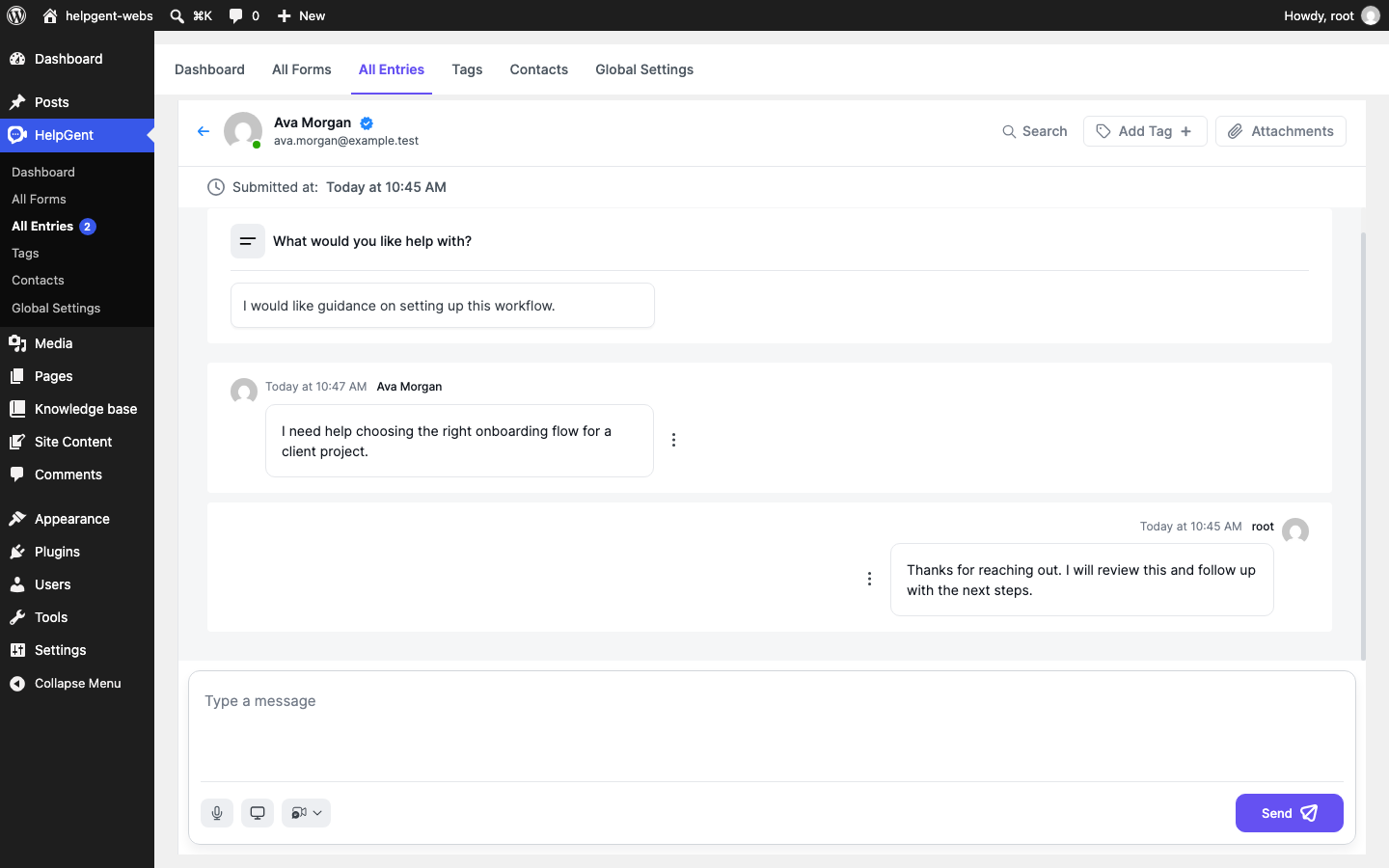
- At the top of the response, review the visitor name and email address.
- Check the Submitted at time to understand when the entry was received.
- Read the answer cards to see the values submitted for each form element.
- Scroll through the conversation to read visitor messages and previous agent replies.
- Use Search, Add Tag, or Attachments when you need to find related information or organize the response.
Verify the result
- You can identify the visitor and the form that received the entry.
- The submitted answers and conversation messages appear in one response view.
- The reply box is available at the bottom when the response can receive a reply.