Troubleshoot Video Recording and Uploads
Most recording problems come from one of four things: the response type is not enabled, the browser has blocked a device, the file is too large for the current limit, or the upload was interrupted. Use the symptom below that best matches what you see.
Record Video is not available
- Open the form in Editor, select the Open Ended screen, and confirm that Video Message is enabled under Users can reply in.
- If you need screen recording, confirm that HelpGent Pro is installed and the license is active. Screen Record may not appear for a plan that does not include it.
- Publish the form again after changing the response settings, then open the public link in a new private window.
The browser does not request camera or microphone access
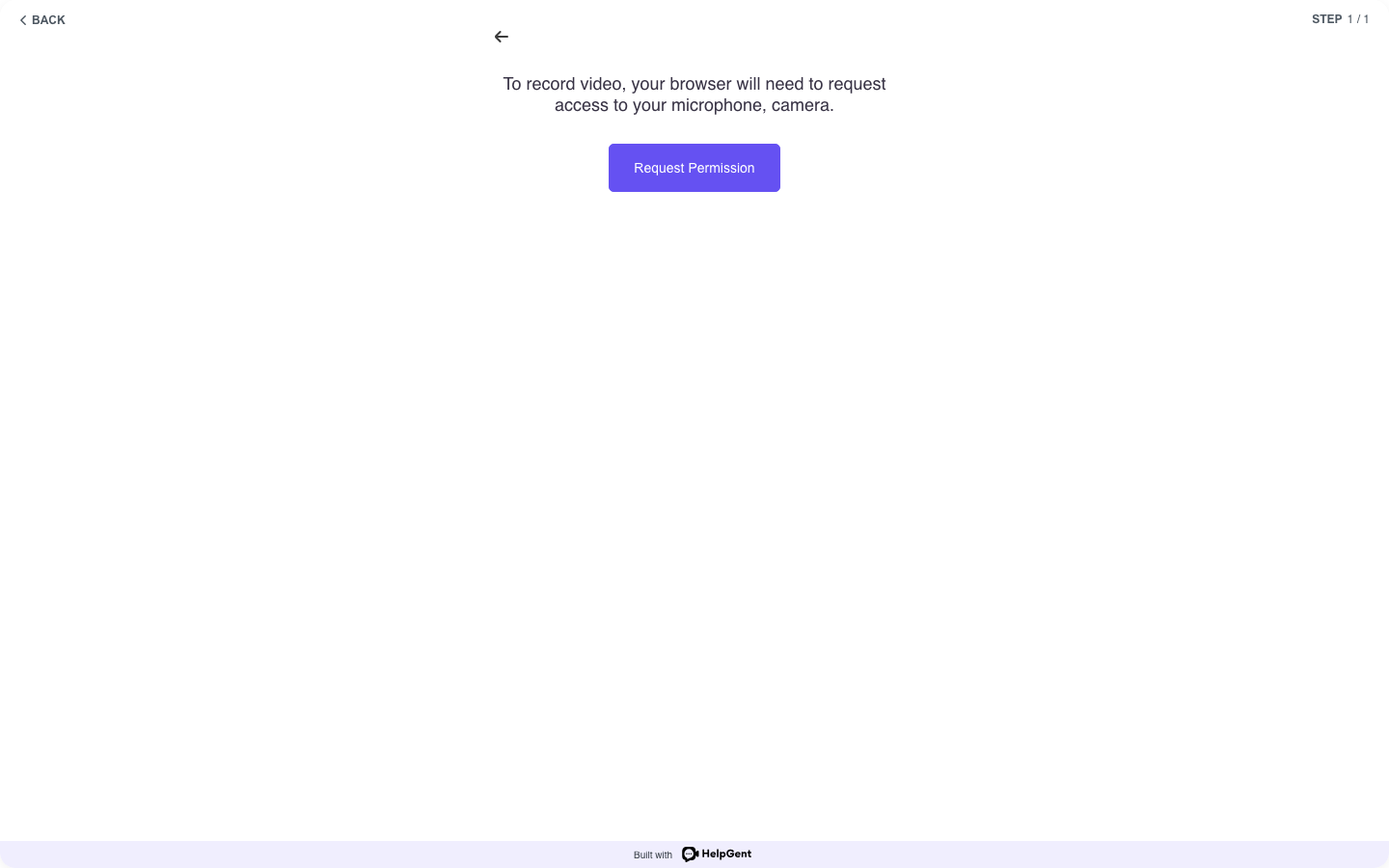
Choose Request Permission when HelpGent displays the permission screen. If the browser does nothing:
- Check the site permission icon in the browser address bar.
- Allow camera and microphone access for the site.
- Close another app that may already be using the camera or microphone.
- Reload the form and try again.
The video upload is rejected
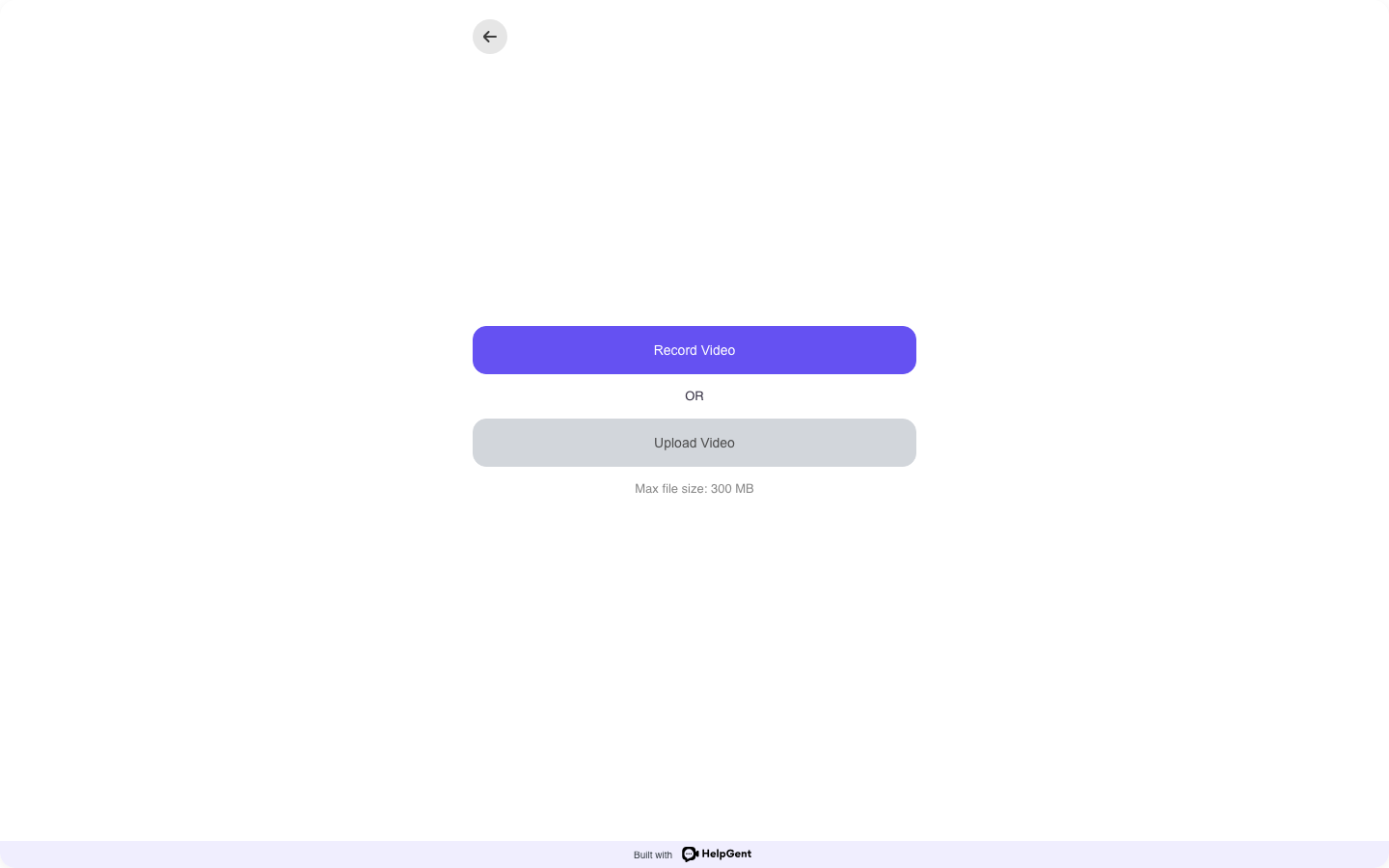
- Check the file type and try a standard MP4 video if the original file is rejected.
- Check the size shown on the upload screen. In the tested interface, HelpGent displayed Max file size: 300 MB; the limit can vary with form settings, hosting configuration, or plan.
- Try a shorter or smaller export when the file is close to the limit.
- If even small files fail, ask your site administrator to check WordPress and server upload limits.
The recording or upload stays stuck
- Check the internet connection and wait for the upload to finish before closing the tab.
- Try the same form in a current version of Chrome, Edge, Firefox, or Safari.
- Disable browser extensions that block media, scripts, or uploads, then retry.
- Clear the page cache and open the published link again.
- Try a smaller file to separate a file-size problem from a connection problem.
The recording plays incorrectly
Test the response in another current browser. If the problem happens only with one file, export the video again as MP4 with standard audio. If all recordings fail, check whether the site’s storage configuration or a security plugin is blocking media access.
The response does not appear in All Entries
- Confirm that the visitor reached the form’s End screen or saw the submission finish.
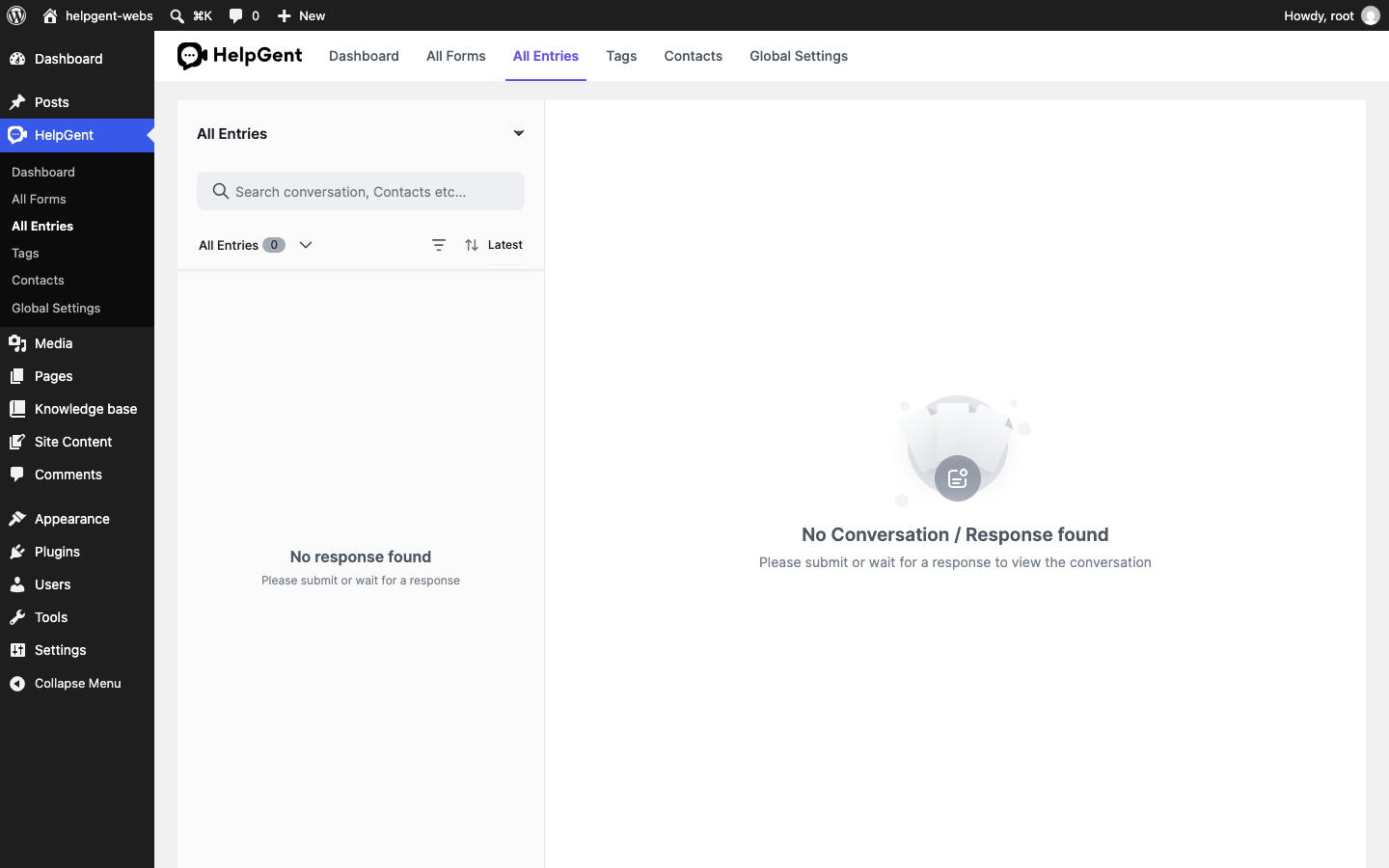
- Open HelpGent → All Entries and make sure the correct form is selected.
- Refresh the list and check the Latest sort order.
- Submit a small text response to confirm that the form itself is working.
- If text works but media does not, retry with a short MP4 or voice recording and check the upload limit.
What to include when contacting support
Include the form link, the response type, browser and version, operating system, file type and size, the exact error message, and whether a text response works. If the problem is plan-related, also include the HelpGent Pro license status. Do not share passwords or private recordings unless support specifically asks for a safe, redacted example.