Configure Form Settings
Form settings control behavior that applies to the whole form. Use them after you have added your screens so you can configure the submission experience, notifications, branding, progress, and quiz behavior in one place.
Open form settings
- Open the form in the HelpGent builder.
- Select Settings in the top navigation.
- Choose General Settings or Email Notification from the settings panel.
- Make your changes and select Save Settings at the bottom of the page.
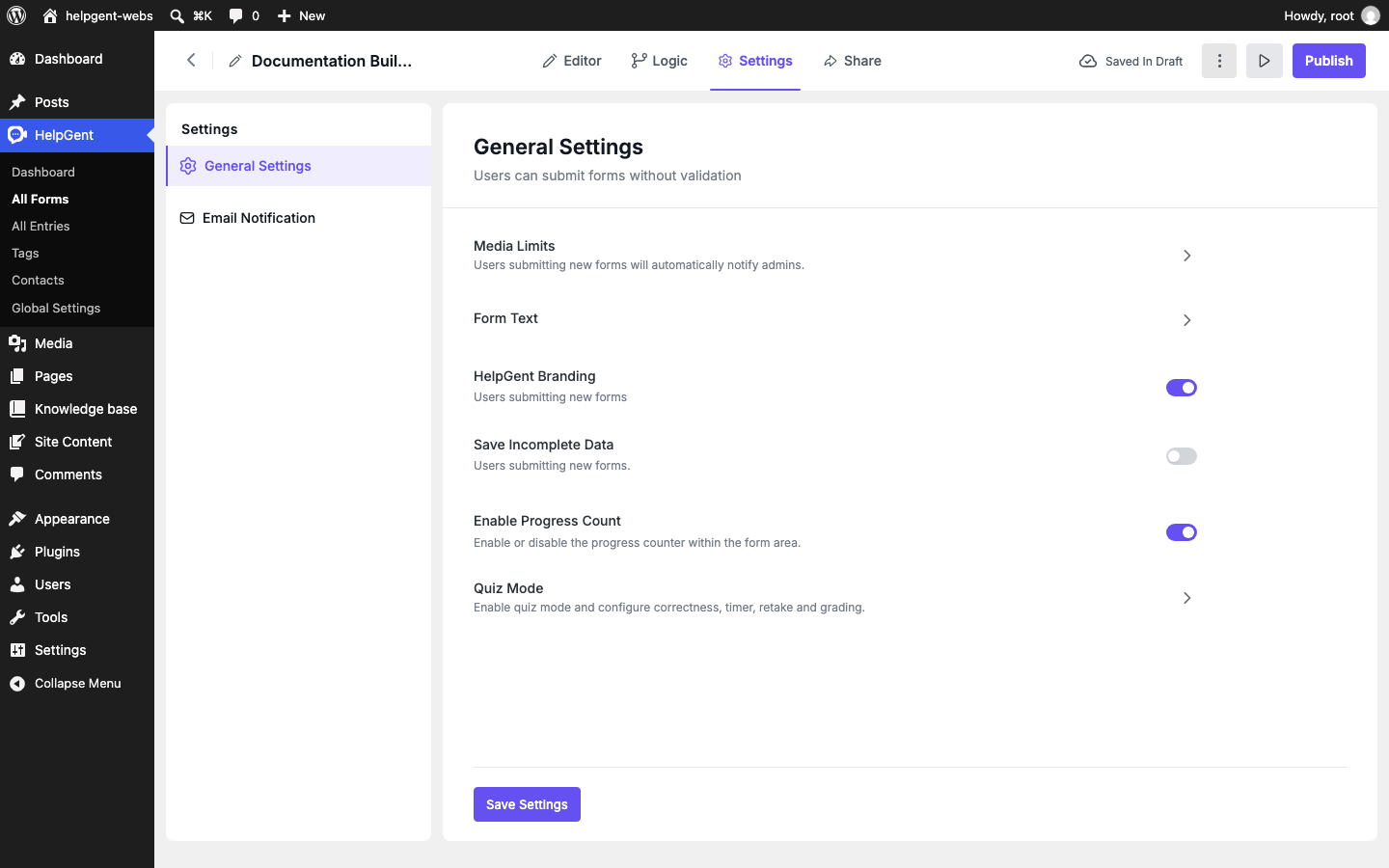
General Settings
| Setting | What it controls |
|---|---|
| Media Limits | Limits related to media responses. Expand this item to review the available limits for the form. |
| Form Text | Changes the text used for the form’s submission and answer-confirmation buttons. |
| HelpGent Branding | Shows or hides HelpGent branding in the form where the option is available. |
| Save Incomplete Data | Allows incomplete form data to be retained when the option is available in your plan. |
| Enable Progress Count | Shows or hides the progress counter inside the form so users can understand their position in the flow. |
| Quiz Mode | Enables quiz controls such as correct answers, retakes, timers, and grading. See Create Quizzes. |
Email Notification
The Email Notification area contains separate Admin Notification and User Notification views. Use them to decide which events send email and to edit the related email templates.
- Form Submission — notify the selected recipient when a user submits the form.
- New Message from User — notify the selected recipient when a user sends a new message.
- Missed Chat Replay — notify users when an administrator replies after being unavailable for a chat.
- Edit Email Template — edit the subject and body for the selected notification.
Template fields can include values such as the sender name, recipient name, site name, site URL, message details, and response links. Keep the subject specific enough that recipients know what action is needed.
Save and verify
Select Save Settings after changing a value. Then open the form preview and test the behavior that you changed. For example, confirm that the progress count appears as expected, the button wording is clear, and notification recipients receive the correct email.
Good defaults for a first form
- Keep Enable Progress Count on for longer forms.
- Use short, action-focused submission button text.
- Enable incomplete data only when returning users can realistically finish later.
- Turn on quiz options only after you have marked the correct answers for the quiz screens.