Install HelpGent Pro
HelpGent Pro adds additional form elements, lead-management features, cloud media storage, and other Pro capabilities. A valid license enables access to licensed AI features, but platform pairing and the AI Assistant use separate connection states.
Before you start
- HelpGent must already be installed and active.
- Administrator access to WordPress.
- The HelpGent Pro ZIP file.
- The username and password for the HelpGent account used to purchase Pro.
- Your HelpGent Pro license key.
Install and activate Pro
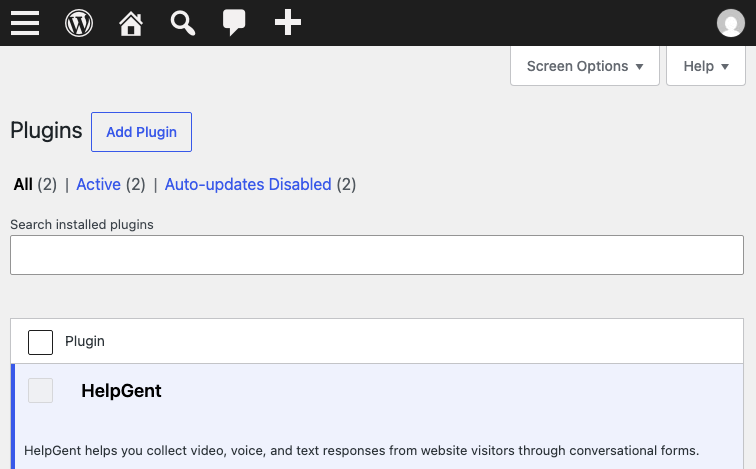
- Go to Plugins → Add New Plugin.
- Select Upload Plugin.
- Choose the HelpGent Pro ZIP file and select Install Now.
- When installation finishes, select Activate Plugin.
Get your license key
- Sign in to the HelpGent account you used to purchase Pro.
- Sign in to your HelpGent account using the credentials you used to purchase Pro, then open your account profile or license area.
- Copy the license key for your HelpGent Pro purchase.
Activate the license in WordPress
- In WordPress, go to HelpGent → Global Settings → License Key.
- Choose the license term that matches your purchase: 1 Year or 3 Years.
- Paste the key into Enter your License key here….
- Select Activate.
HelpGent validates the key with its licensing service. A successful activation shows License activated successfully and saves the license for this site.
Connect the HelpGent AI platform
After successful license activation, open the HelpGent AI screen to connect this WordPress installation to the credit-backed platform. License activation does not by itself prove that platform pairing has completed. The platform connection returns the active plan, license status, expiry information, and the current AI wallet balance, including available and reserved credits.
- Open HelpGent → Global Settings → HelpGent AI.
- Confirm that the Account & credits status is connected or ready. On local, staging, or other non-production sites, complete the explicit wpWax approval flow if requested.
- Review the plan and available AI credits shown for the account.
The available credit amount is supplied by HelpGent AI for the active account and plan; it is not a fixed value stored in the WordPress plugin.
If the license is active but AI is not connected
The license, HelpGent AI platform account, and AI Assistant connection are separate states. If the license activates but Account & credits cannot connect, the plugin keeps the license active and displays a retry or approval message. Open HelpGent → Global Settings → HelpGent AI and select the available action. The AI Assistant may still provide drafts, summaries, knowledge-based replies, or automatic replies through its existing service connection.
If activation fails
Check that the key was copied completely, that the selected term matches the purchase, and that the site has permission to connect to the HelpGent licensing service. The plugin reports common causes such as an invalid, expired, revoked, mismatched, or already-used license.
Continue with First-time setup.