Create a Ready-to-Edit Form from an Idea
HelpGent AI can turn a short description into a structured form draft. This is useful when you need a project brief, support intake form, product-question form, application form, or quiz without building every screen from scratch.
Before you start
- Install HelpGent and HelpGent Pro.
- Activate a valid HelpGent Pro license and connect HelpGent AI if the AI screen asks you to.
- Prepare a one- or two-sentence description of the information you want to collect.
Create the draft
- Go to HelpGent → All Forms.
- Select Add New Form.
- Choose Create with AI.
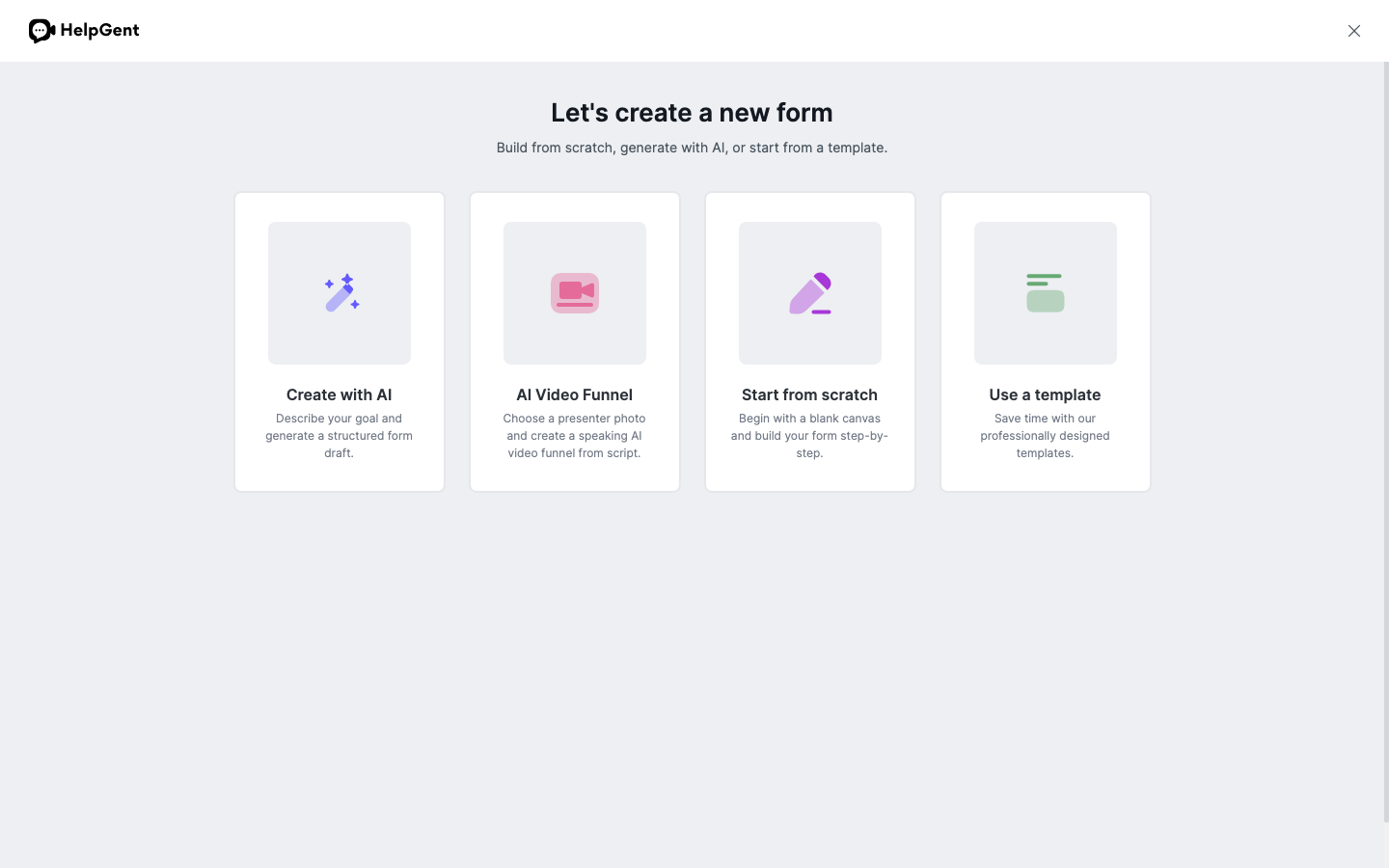
- Describe the form you want to create. Include the audience, the main goal, and the information you need. For example: “Create a project brief for an agency to collect a client’s goals, budget, deadline, and reference files.”
- Submit the description and wait for HelpGent AI to prepare the draft.
- Review the generated screens, questions, and form flow in the builder.
- Edit the draft before saving or publishing it. Add missing fields, remove questions you do not need, and adjust the wording for your audience.
Make the draft ready to use
Use the generated form as a starting point rather than a final answer. Check that required questions are clear, that the order feels natural, and that any media or file fields match your workflow. Agencies can ask for project requirements, SaaS teams can collect support details, and recruiters can gather candidate information in the same way.
Verify the result
- The generated form opens in the HelpGent builder.
- The screens and elements match the information you described.
- You can save, preview, and publish the revised form after checking the visitor experience.
Note: AI-generated content uses AI credits when the selected workflow requires them. Review the draft for accuracy, tone, and privacy before sharing it.