Pro Features Not Appearing
If a Pro control, AI tool, or cloud-storage option is missing, confirm the Pro plugin, license, and account connection in that order. Check the Pro installation Open Plugins…
If a Pro control, AI tool, or cloud-storage option is missing, confirm the Pro plugin and license first, then check the connection used by that specific feature.
Check the Pro installation
- Open Plugins → Installed Plugins in WordPress.
- Confirm that HelpGent and HelpGent Pro are installed and active.
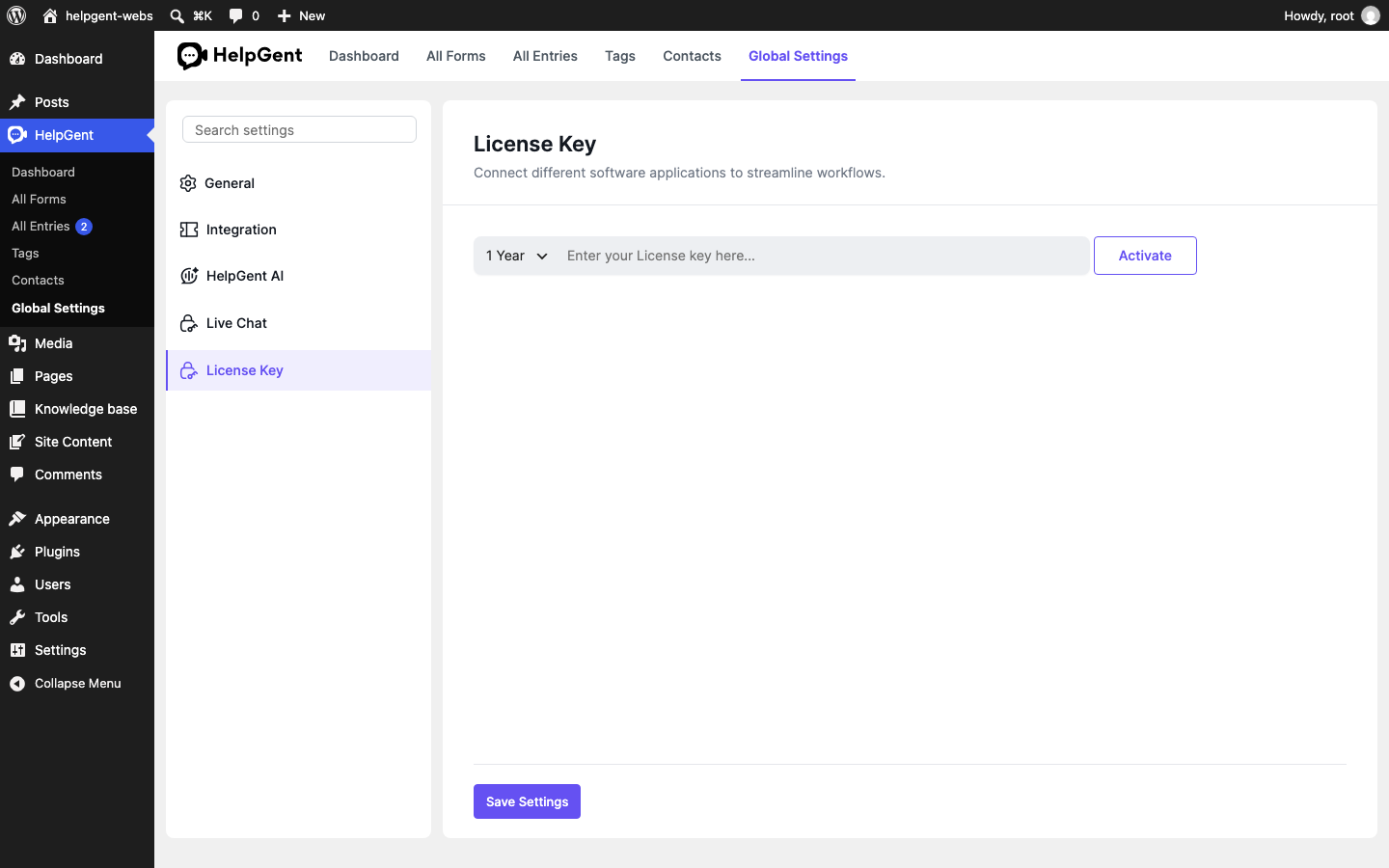
- Open HelpGent → Global Settings → License Key.
- Enter the license key from your HelpGent account and select Activate.
Check the feature connection
- For credit-backed AI generation, open Global Settings → HelpGent AI → Account & credits and confirm the platform is connected. Non-production sites may require explicit wpWax approval. For AI Assistant drafts, summaries, knowledge sources, and automatic replies, check the separate Assistant settings and test that workflow directly.
- For Live Chat, open Global Settings → Live Chat and connect the account.
- For cloud storage, open Global Settings → Integration → Cloud Storage and connect a provider.
- Reload the HelpGent screen after activation.
Verify the result
- The license status is active.
- The relevant feature panel is visible.
- The connection required by that feature is ready, or its approval requirement is clearly identified.
- The feature opens without an upgrade or license prompt.
Remember: An active license does not by itself prove that the HelpGent AI platform is paired, and a working AI Assistant does not prove that Account & credits is connected.