Create Your First Interactive Form
Interactive forms let visitors move through a guided, conversational experience instead of completing one long page. For video-based workflows, the Open Ended element gives visitors a choice of text, video, voice, or screen-recorded responses.
Before you start
- Make sure HelpGent is installed and active.
- Activate HelpGent Pro if you need Pro-only features such as Screen Record.
- Decide what you want visitors to send—for example, a project brief, a support issue, or a video application.
Create the form
- From your WordPress dashboard, go to HelpGent → All Forms.
- Select Add New Form, then choose Start from scratch.
- Enter a clear form name, such as “Project Requirement Video Brief,” and create the form.
- HelpGent opens the builder with a Welcome screen and an End screen. Add your questions between these screens.
Understand the builder
The builder is divided into a few working areas:
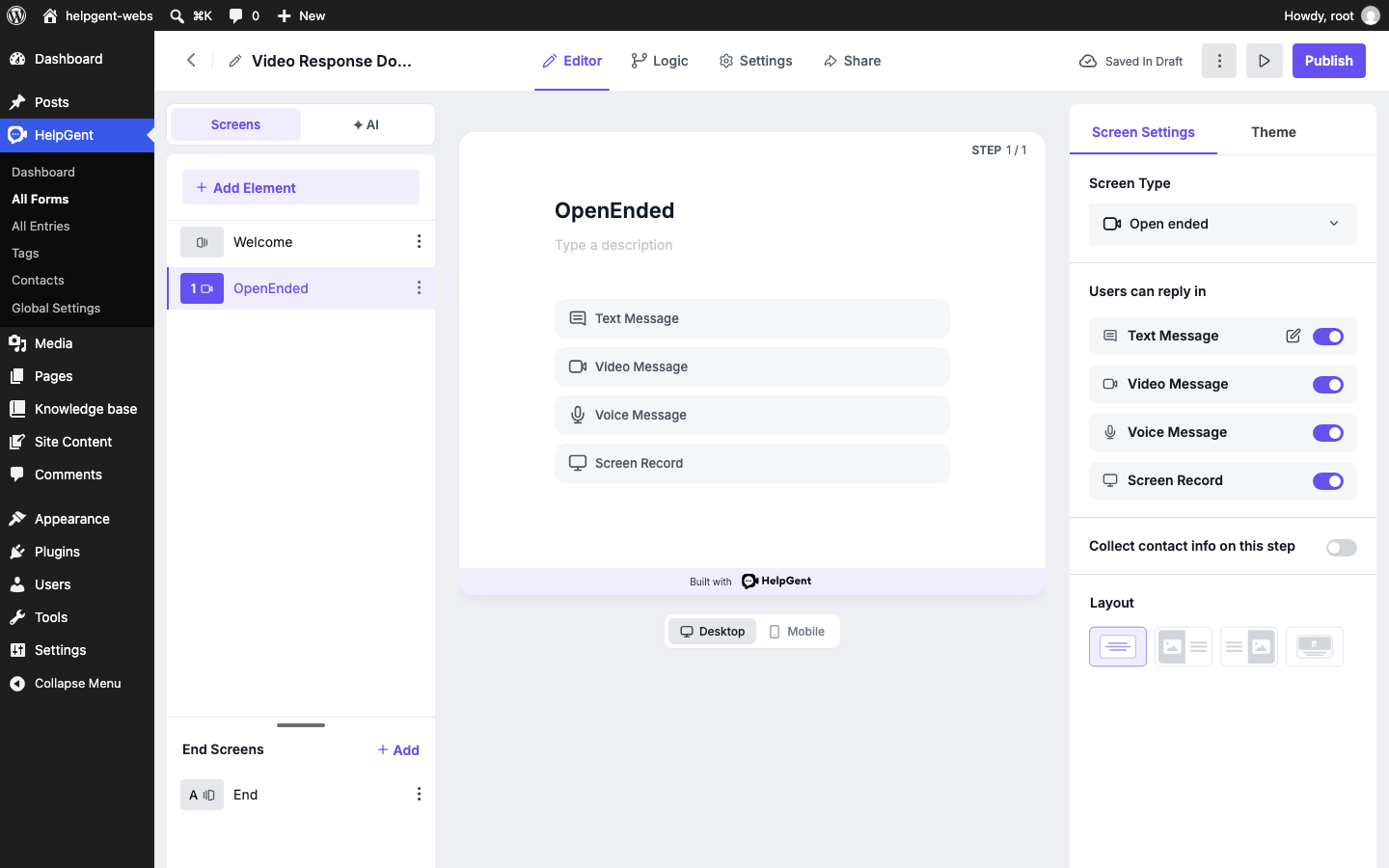
- Screens panel: The left panel lists the steps in your form. Select a screen to edit it, or use Add Element to add another step.
- Preview: The center panel shows how the selected screen will look to visitors. Use the Desktop and Mobile previews to check both layouts.
- Screen Settings: The right panel controls the selected screen. Its options change depending on the element you select.
- Top navigation: Use Editor to build the form, Logic for conditional behavior, Settings for form-level options, and Share when the form is ready.
Add an interactive response screen
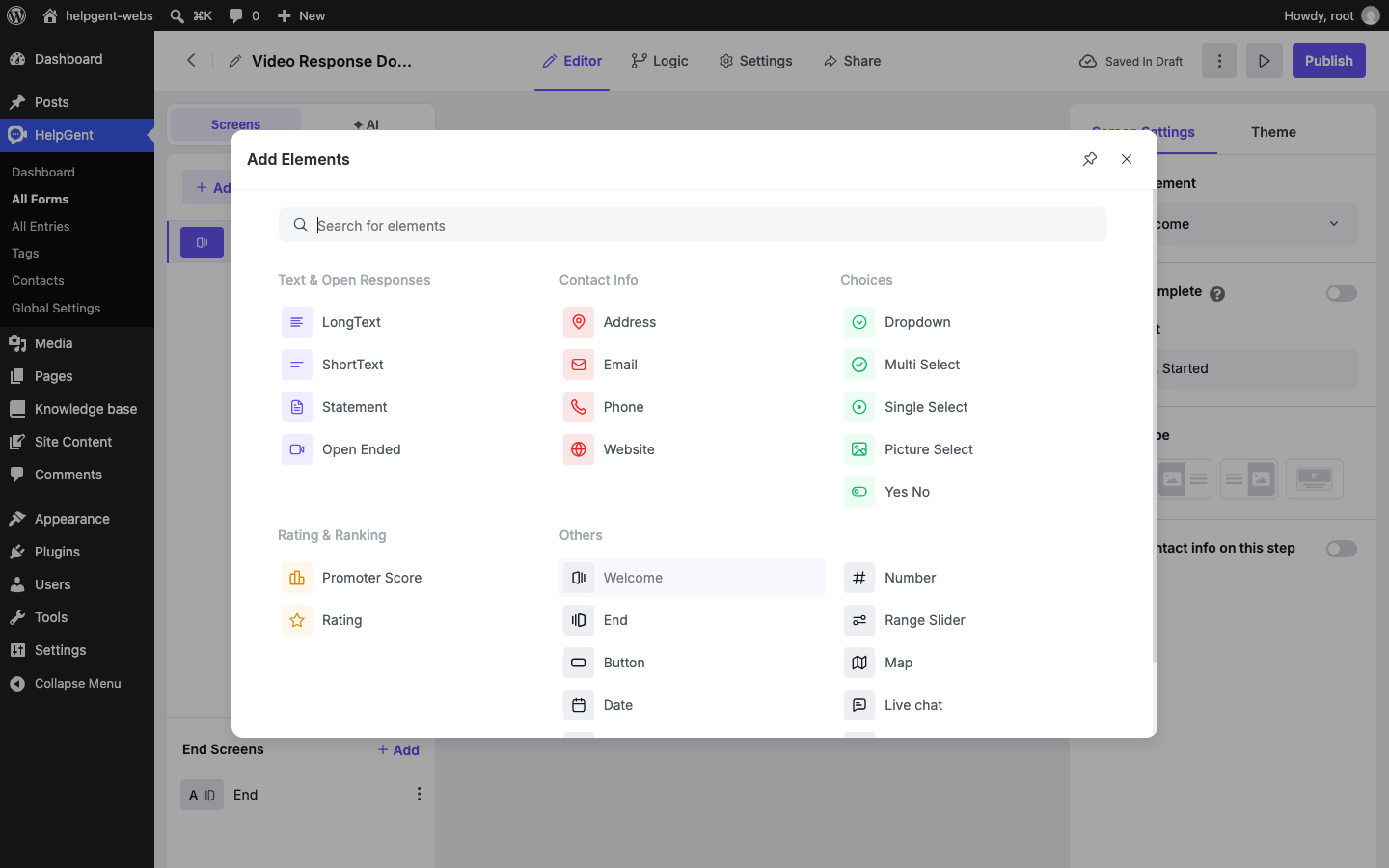
- Select Add Element.
- Choose Open Ended from Text & Open Responses.
- Select the new Open Ended screen in the Screens panel.
- In the preview, replace the default title and description with a direct request, such as “Show us the issue you are experiencing.”
- In Screen Settings, choose the response types visitors may use. You can enable Text Message, Video Message, Voice Message, and Screen Record independently.
- Enable Collect contact info on this step when you need a name or email with the response, then choose a layout that fits your content.
Check the form before publishing
- Read the question as a visitor would and make sure the requested response is obvious.
- Check both Desktop and Mobile previews.
- Open the form preview and confirm that each enabled response option appears.
- Save the form, then continue with Add Video, Voice, and Screen Recording and Publish and Share Your Interactive Form.
Tip: For a better response, tell visitors what to include. For example, ask them to show the problem on screen, describe what they expected, and mention the page or product involved.