Configure Google Maps and reCAPTCHA
HelpGent includes integration settings for Google Maps and Google reCAPTCHA. Maps can support location-based form elements, while reCAPTCHA helps protect public forms from spam and abuse. Before you…
HelpGent includes integration settings for Google Maps and Google reCAPTCHA. Maps can support location-based form elements, while reCAPTCHA helps protect public forms from spam and abuse.
Before you start
- Create the required credentials in the relevant Google service.
- Keep the site key and secret key available for reCAPTCHA.
- Use the domain of the site where the HelpGent form will be published.
Configure Google Maps
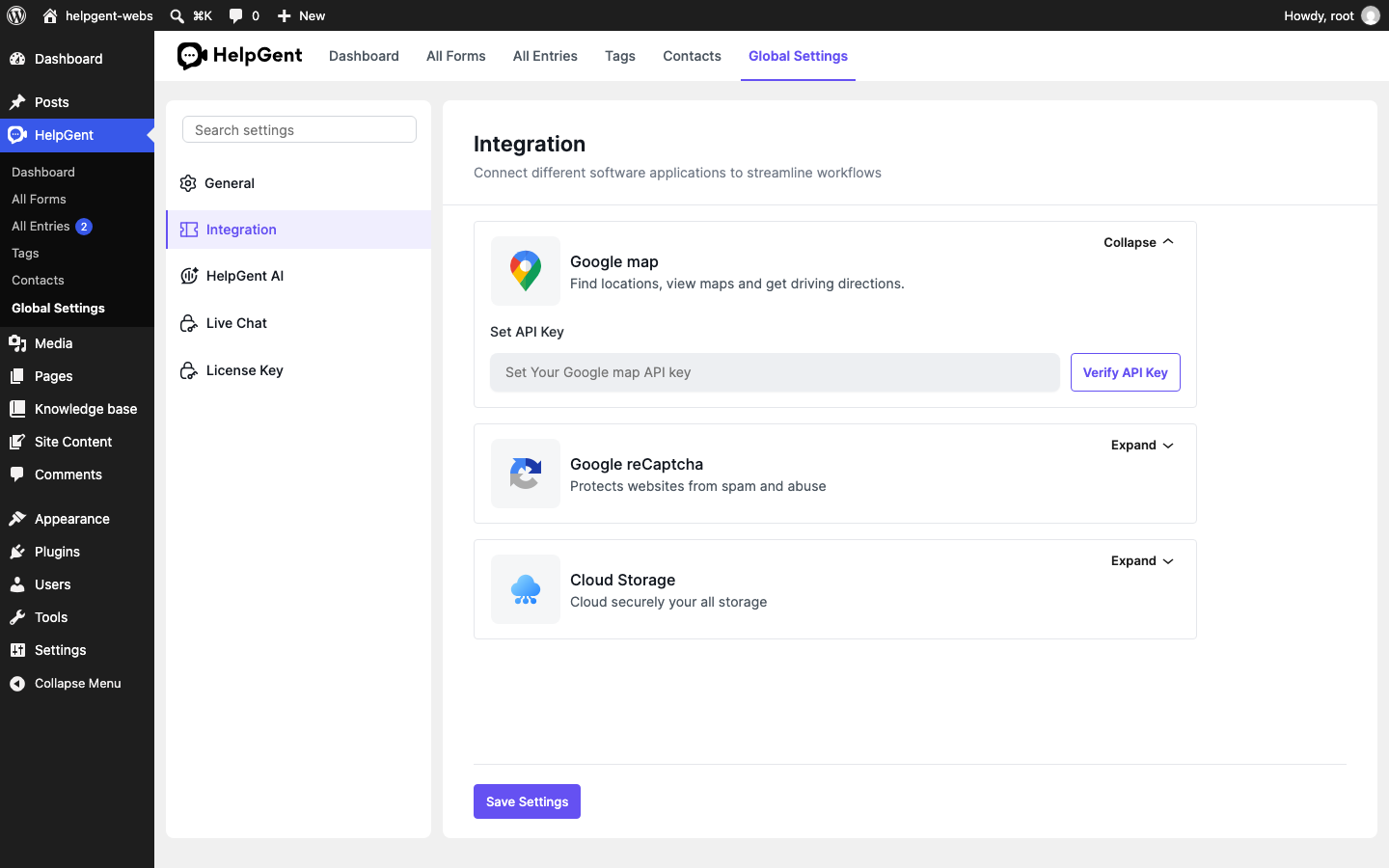
- Go to HelpGent → Global Settings → Integration.
- Open Google map.
- Enter the key in Set API Key.
- Select Verify API Key.
- Save the settings.
Configure Google reCAPTCHA
- Stay on the Integration screen and open Google reCaptcha.
- Enter the Google value in Site Key.
- Enter the secret value in the field labeled Secrete Key.
- Save the settings.
Verify the result
- Google Maps confirms that the API key is valid.
- The reCAPTCHA keys remain saved after reloading the settings.
- A test form shows the map or reCAPTCHA behavior where the corresponding element or protection is enabled.
Never publish the secret key in a screenshot, page, form description, or support request.