Send Video, Voice, and Screen-Recording Replies
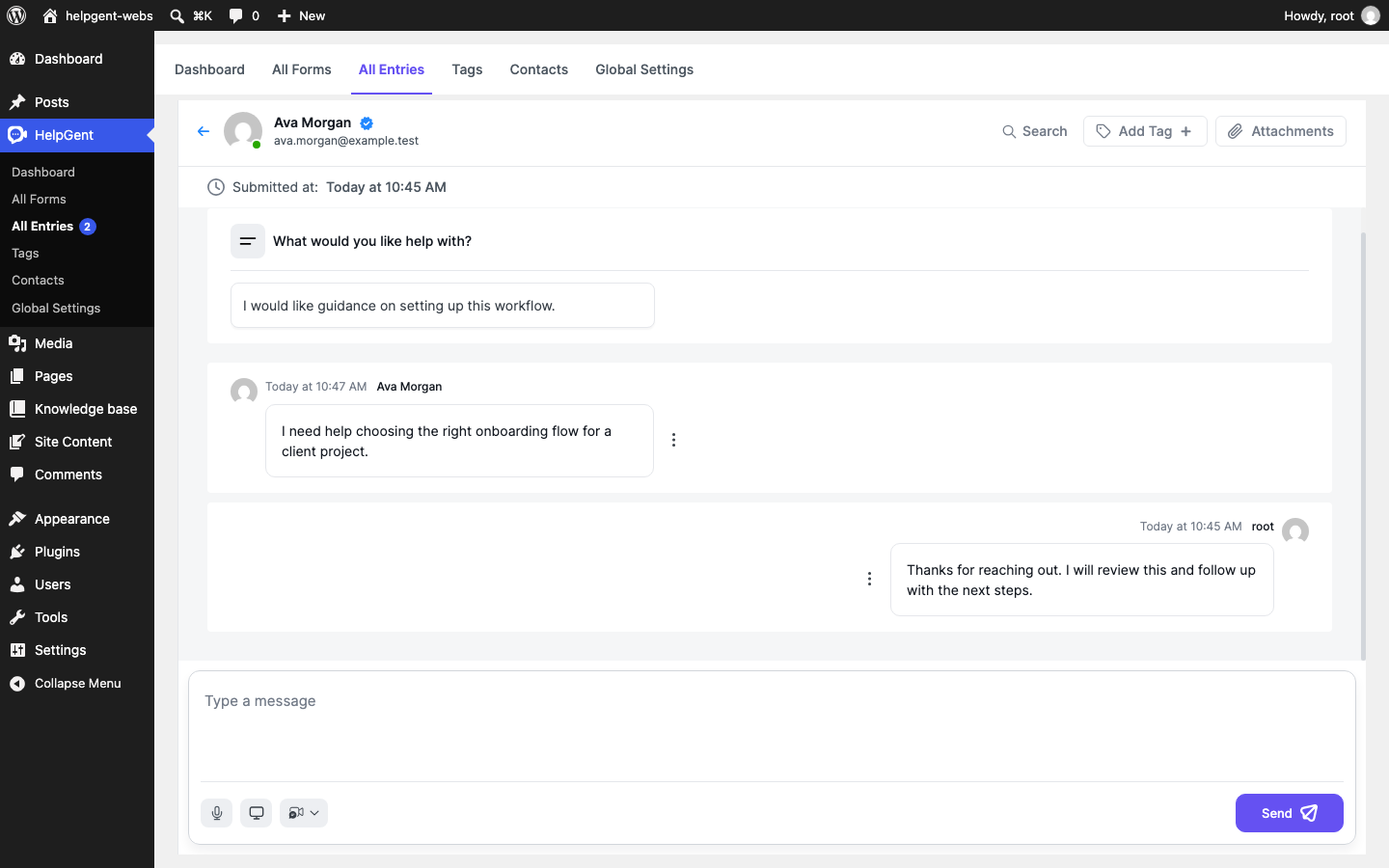
HelpGent lets you answer a response with a voice recording, a screen recording, or a video message. Use the media controls in the reply composer when explaining a visual task is faster than writing a long reply.
Before you start
- Open a response from HelpGent → All Entries.
- Allow camera, microphone, or screen access when your browser asks for permission.
- Use a device with the recording hardware you need.
Choose a media reply
- Open the response and scroll to the reply composer.
- Use the microphone button to start a voice recording.
- Use the screen button to start a screen recording.
- Use the video button to open the video options.
- Choose Record a video to record a new video, or choose Upload a video to select an existing video file.
Review and send the media
- Complete the recording or choose the video file you want to send.
- Review the media preview.
- If the preview includes a message field labeled Type your text here, add a short explanation for the visitor.
- When the media is ready, select Send.
What each control does
| Control | Use it for |
|---|---|
| Microphone | Send a voice reply when spoken instructions are the clearest option. |
| Screen | Show a workflow, setting, or support issue from your screen. |
| Record a video | Record a camera-based video reply. |
| Upload a video | Send a video that is already saved on your device. |
| Send | Add the media reply to the current response conversation. |
Verify the result
- The media appears as a new message in the response conversation.
- The visitor can open the media from the same conversation thread.
- The response header’s Attachments control includes media associated with the conversation.