Create your first form
Create a basic HelpGent form with a welcome screen, one or more questions, and an end screen. You can add more fields and screens later as your conversation grows.
Before you start
- HelpGent is installed and active.
- You have completed the first-time setup.
- You know what information you want to collect from visitors.
Create the form
- Go to HelpGent → All Forms.
- Select Add New Form.
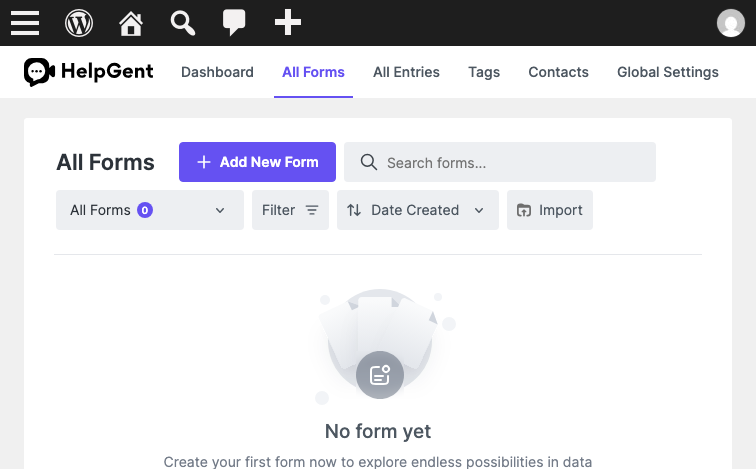
- Select Start from scratch.
- Enter a name in Form Name.
- Select Create Form.

Add your first question
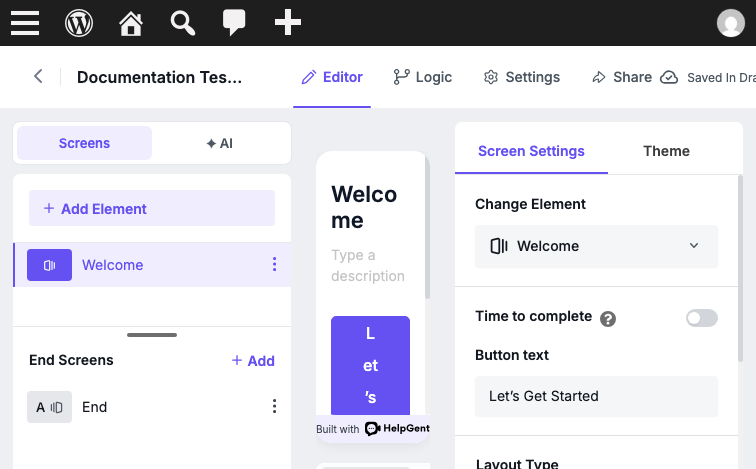
- In the form editor, select Add Element.
- Choose a question element such as Short Text, Email, Long Text, or a choice field. To collect text, video, voice, or screen-recorded answers, add Open Ended and select its reply mode. To build a quiz, open Settings → General Settings → Quiz Mode, enable Quiz Mode, and configure correct answers on supported question fields.
- Configure the element and save the form.
Choose questions for your goal
You do not need to use every element. Start with the questions that help you complete one job:
- Project brief or lead qualification: collect contact details, project choices, goals, and a short video explanation.
- Support issue or product feedback: ask for a written description or file upload, and use an Open Ended field when the visitor should reply with video, voice, or a screen recording.
- Application or assessment: combine supported written or choice questions, then enable Quiz Mode in General Settings and configure the correct answers.
- Customer feedback: use a written response, rating, or Promoter Score/NPS question when those elements are available in your version.
Keep the first form focused
For your first test, add only the questions needed to complete one short conversation. If you want to collect a video or voice response, tell visitors what to record and how long their answer should be.
Verify the form
- Confirm that the form opens in the editor.
- Confirm that its status is shown as Saved In Draft until you publish it.
- Reopen the form and check that your first question is still present.
When the form is ready, follow Publish your first form.