Design and Customize Forms
HelpGent lets you customize the form at two levels: the selected screen and the form-wide theme. Use screen settings to make one question easier to answer, then use a theme to keep the full experience visually consistent.
Customize an individual screen
- Open the form and select Editor.
- Choose a screen from the Screens list.
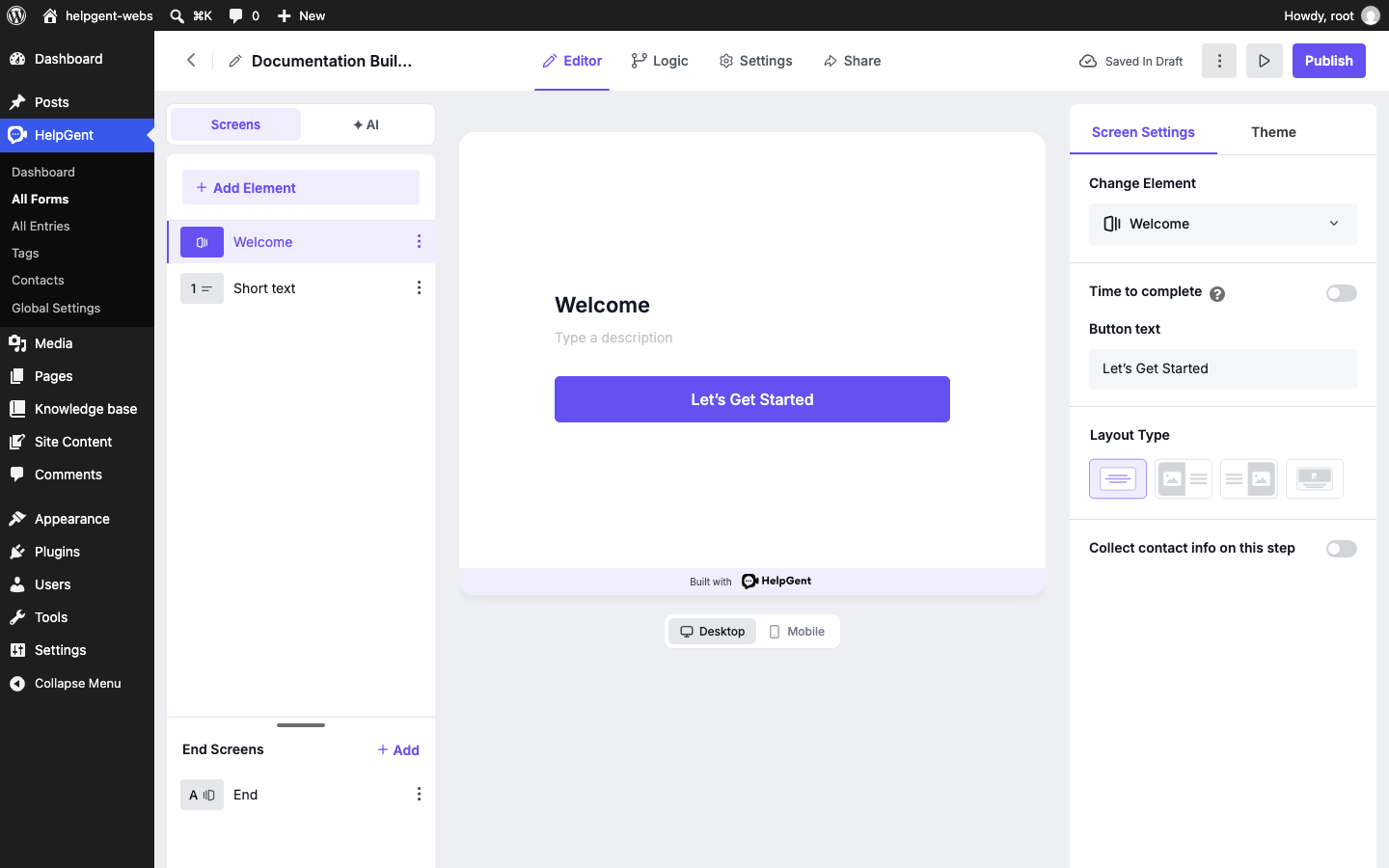
- Use the Screen Settings panel on the right.
- Check the result in the center preview and switch between Desktop and Mobile.
Depending on the selected element, the panel may include Change Element, Time to complete, Button text, Layout Type, required-answer controls, options, and Collect contact info on this step. The available controls change with the element, so select the screen before looking for a setting.
Use a form-wide theme
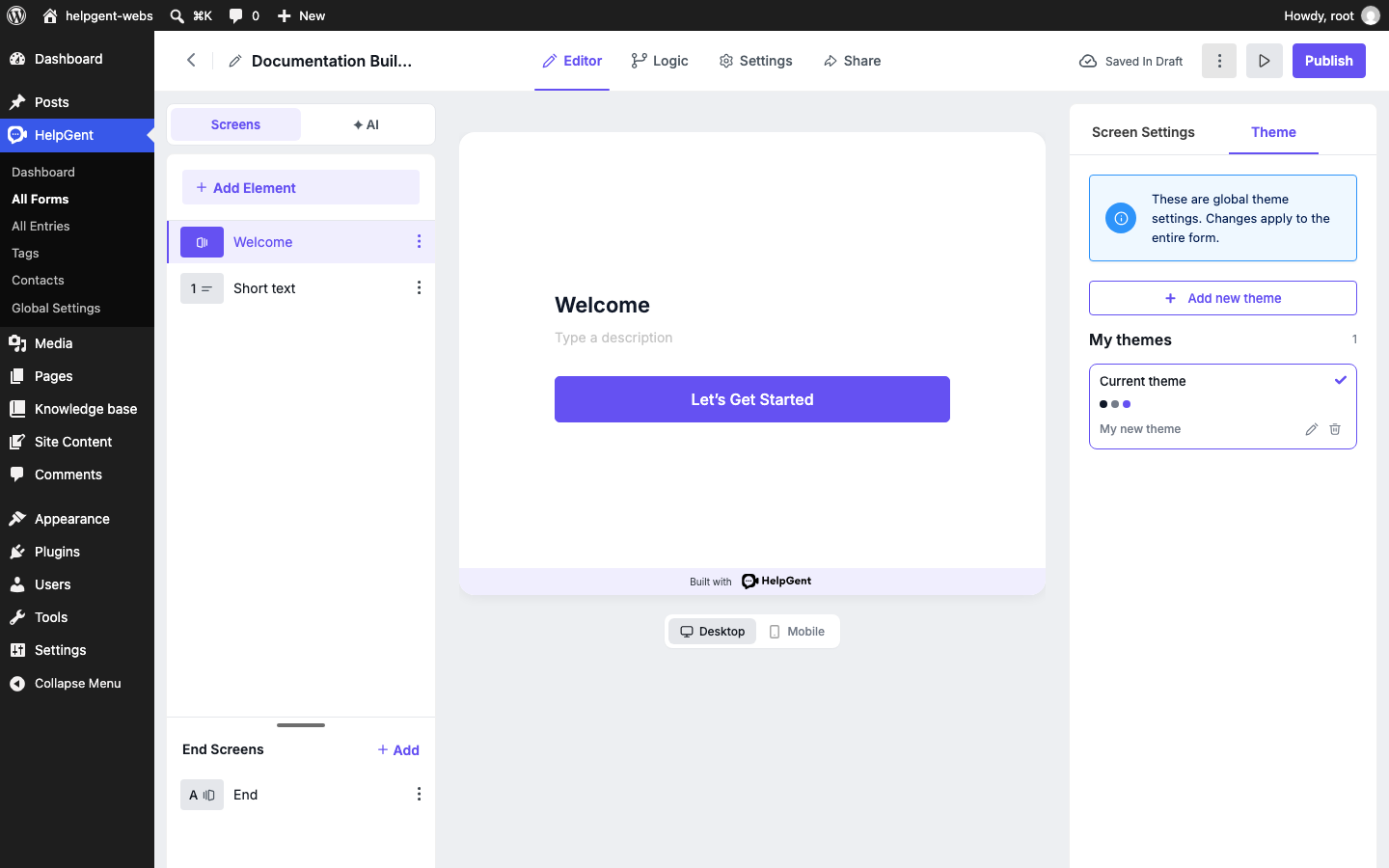
- In the editor, select Theme in the right panel.
- Review the information notice that theme changes apply to the entire form.
- Select Add new theme to create a theme, or select the current theme to continue working with it.
- Use the theme controls to adjust the form’s shared appearance.
- Return to Screen Settings when you need to change only the selected screen.
What the Theme panel contains
- Information notice — explains that theme changes apply to the entire form.
- Add new theme — creates another reusable theme option.
- My themes — lists the themes available for the form.
- Current theme — identifies the theme currently applied to the form.
- Edit and delete actions — manage an existing custom theme from its theme card.
Design recommendations
- Use a short title and a single clear instruction on each screen.
- Use the same tone for button text throughout the form.
- Check the mobile preview before publishing; long labels and wide media can change the way a screen feels on a phone.
- Use contrasting colors for primary actions so users know how to continue.
- Keep the Welcome and End screens visually consistent with the question screens.
Theme changes do not replace content editing. To add a new question or response type, return to Screens and select Add Element.