Manage Contacts and Guests
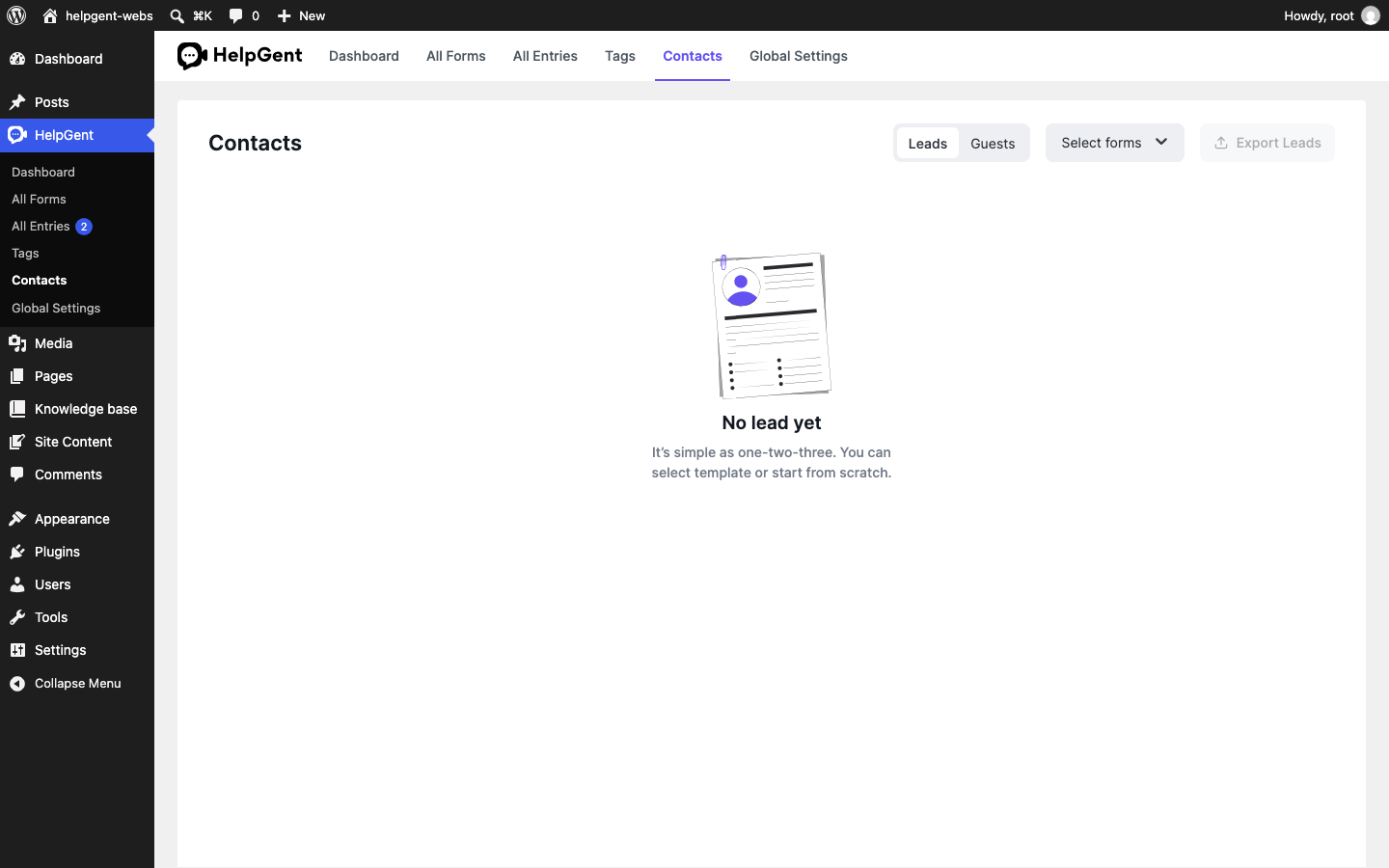
HelpGent keeps people connected to the forms and conversations they use. Use the Contacts screen to review lead records, browse guest users, and narrow the list to a…
HelpGent keeps people connected to the forms and conversations they use. Use the Contacts screen to review lead records and browse guest users. The Leads and Guests tabs provide different controls.
Before you start
- Make sure you are signed in as a WordPress administrator.
- Have at least one published form with a response or guest interaction.
Open Contacts
- In WordPress, go to HelpGent → Contacts.
- Choose Leads or Guests at the top of the screen.
- On Leads, use Select forms to show records related to one or more forms. The Guests tab does not provide a form filter.
Understand the two lists
| List | Use it for |
|---|---|
| Leads | People whose submitted information is available as a lead record. |
| Guests | Visitors who interacted with HelpGent without becoming a lead record. |
Use the form filter on Leads when you want to review contacts from a specific campaign, support form, or product flow. The Guests tab shows the available guest dataset without a form filter. If a list is empty, HelpGent shows an empty-state message instead of a table.
Verify the result
- The selected tab is highlighted.
- The Leads list updates when you choose a form.
- Stored contact fields are displayed in the table. Contact rows do not open a separate detail view; use HelpGent → All Entries to find and open the associated response or conversation.