Use Multiple Agents
Add team members as HelpGent Agents so more than one person can review responses and continue visitor conversations from the same WordPress site.
Before you start
- Sign in as a WordPress administrator.
- Have the team member’s name, email address, and login details ready.
Add a HelpGent Agent
- Go to Users → Add New in WordPress.
- Enter the new user’s username, email address, and account details.
- In the Role selector, choose HelpGent Agent.
- Select Add New User.
Let agents work with responses
- Ask the new agent to sign in to WordPress with the account you created.
- Have the agent open HelpGent → All Entries.
- The agent can select a response, read the submitted answers, review the conversation, and send a text or media reply.
- Use the same response list and archive controls to keep the team’s work organized.
Coordinate the team
- Use the response list and unread indicators to identify new work.
- Use tags to mark ownership, priority, or workflow stage.
- Reply in the existing conversation so the visitor sees one continuous thread.
- Archive a completed conversation when it no longer needs to remain in the active inbox.
Verify the result
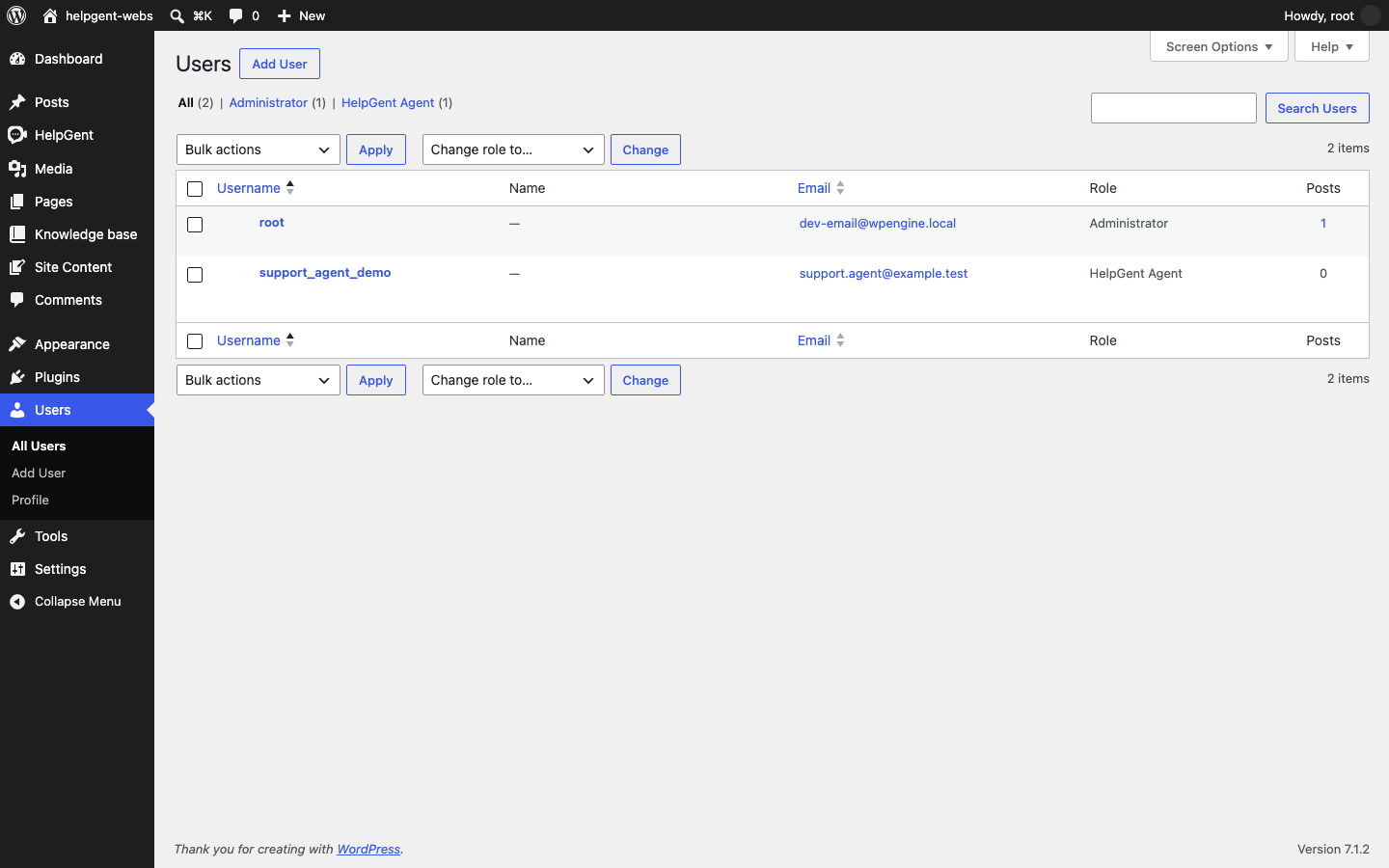
- The new account appears in Users with the HelpGent Agent role.
- The agent can open the HelpGent response inbox after signing in.
- Replies sent by the agent appear in the same response conversation as administrator replies.