Reply to Users
Reply to a HelpGent response from the conversation view so the visitor can continue the same thread. Text replies are useful for answering questions, confirming requirements, or sharing the next step.
Before you start
- Open HelpGent → All Entries.
- Select the response you want to answer.
- Make sure your account has permission to manage HelpGent responses.
Send a text reply
- Select a response card to open the conversation.
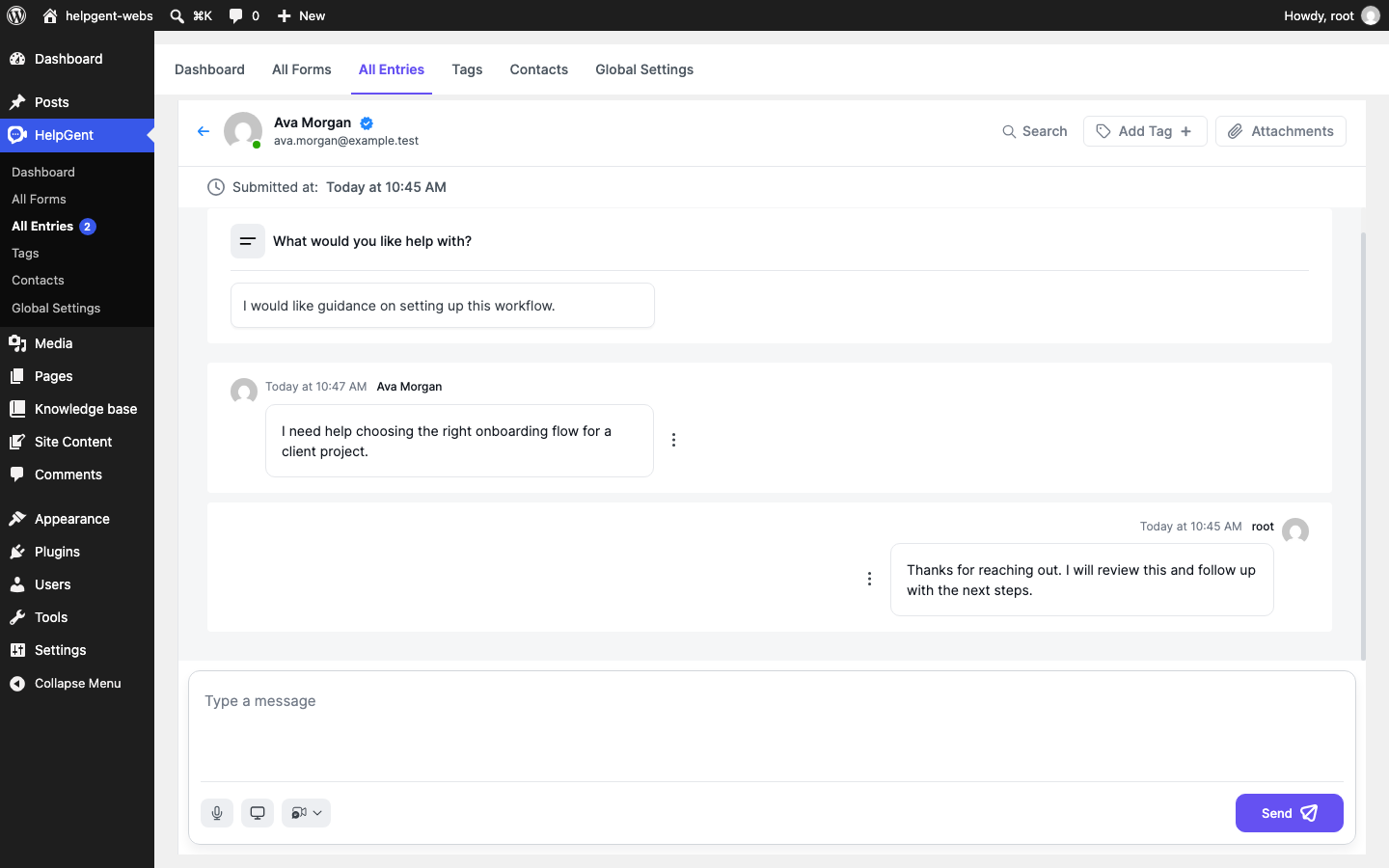
- Scroll to the reply box at the bottom of the screen.
- Select the field labeled Type a message.
- Enter your reply.
- Select Send.
Reply to a specific message
- Open the three-dot menu beside the message you want to reference.
- Select Reply.
- Enter your message in the reply box.
- Select Send.
The reply is added to the same response, making the conversation easier to follow for both the visitor and your team.
Message actions
Depending on the message and your permissions, its three-dot menu can include Edit, Reply, Forward, or Remove. Use these actions on the message that needs attention rather than starting a separate response.
Verify the result
- Your message appears in the conversation with your account name and timestamp.
- The response remains in the visitor’s existing conversation thread.
- The Send button becomes available only after you enter a message or add a media reply.