Configure Full-Screen Forms
HelpGent provides an expanded workspace inside the builder and a container-filling option for shortcode forms. Use builder full-screen mode while designing. On a public WordPress page, the full-screen shortcode attribute fills the available shortcode container; it does not remove the active theme header, footer, or content-width constraints.
Use full-screen mode in the builder
- Open the form from HelpGent → All Forms.
- In the editor header, select the three-dot actions button.
- Turn on Fullscreen Mode.
- Continue editing the form in the expanded workspace.
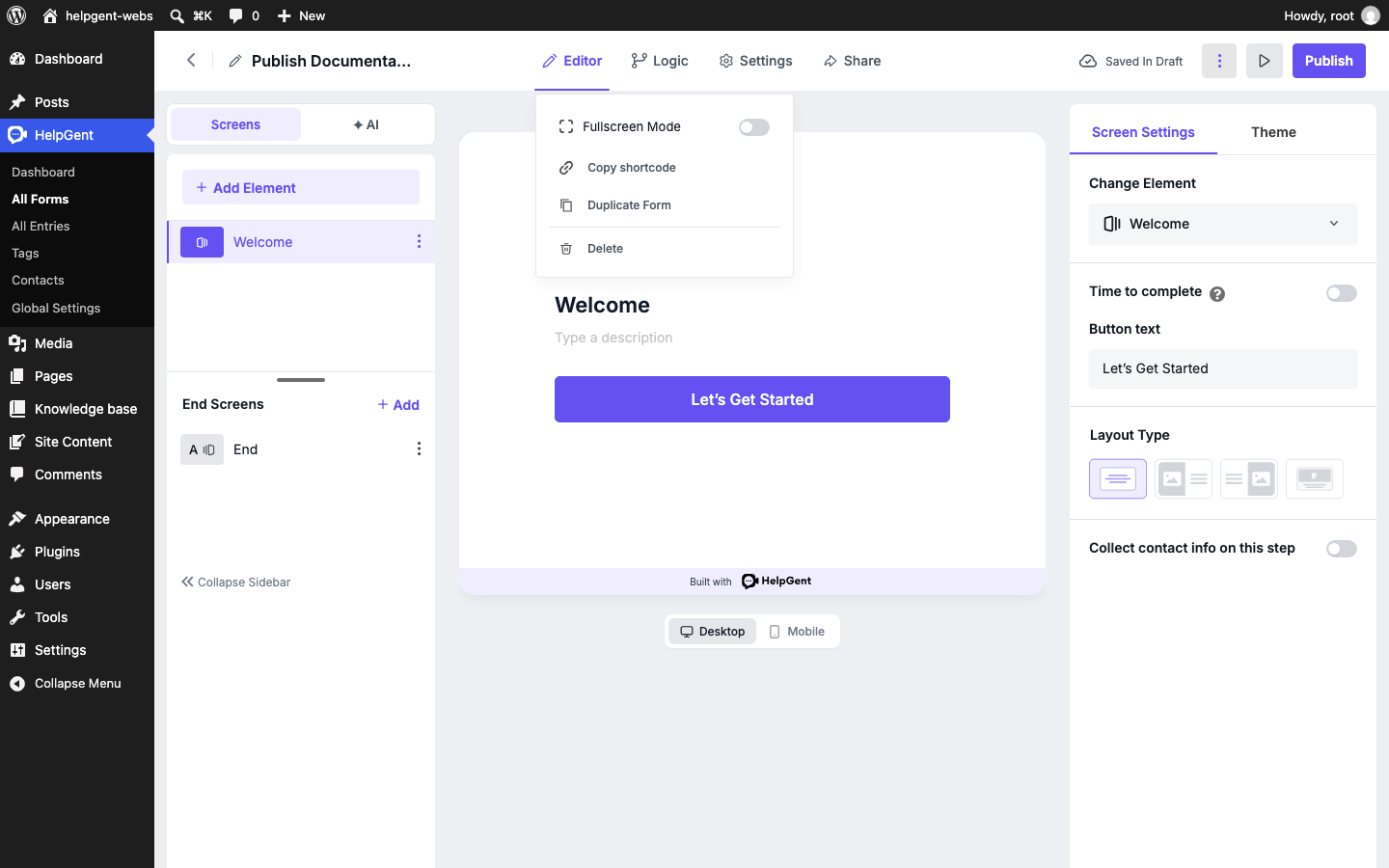
In this menu, you can also copy the form shortcode, duplicate the form, or delete it. The Fullscreen Mode switch changes the editor workspace; it does not change the form’s questions or responses.
Fill the shortcode container
- Copy the form shortcode from HelpGent → All Forms or from the form’s Share → Short code panel.
- Add the
full-screenattribute before the closing bracket. - Use the shortcode in this format:
This form is currently unavailable.
Please try again later or contact the site owner.
Replace 123 with your form ID. Add the shortcode to a WordPress Shortcode block, post, page, or supported builder field, then save or publish the content. The result remains inside the page template selected by your theme. For the largest embedded layout, use a blank, canvas, or full-width page template when your theme provides one.
Check the public presentation
- Open the page while logged out or in a private browser window.
- Confirm that the form fills the available shortcode container. Theme headers, footers, and constrained content columns may remain visible.
- Move through the Welcome, question, and End screens.
- Check the form at desktop and mobile widths.
Use a direct link when you want visitors to open the form as a standalone HelpGent route without a WordPress page template. See Use Shortcodes and Direct Links for the available sharing methods.