Add a Form to a WordPress Page
After you create a HelpGent form, you can place it inside any WordPress page or post with a shortcode. This is a good choice when the form should live alongside your page content, such as a support page, project brief page, or application page.
Before you start
- Create your form in HelpGent.
- Publish the form before adding it to a public page.
- Have a WordPress page or post ready for the form.
Copy the form shortcode
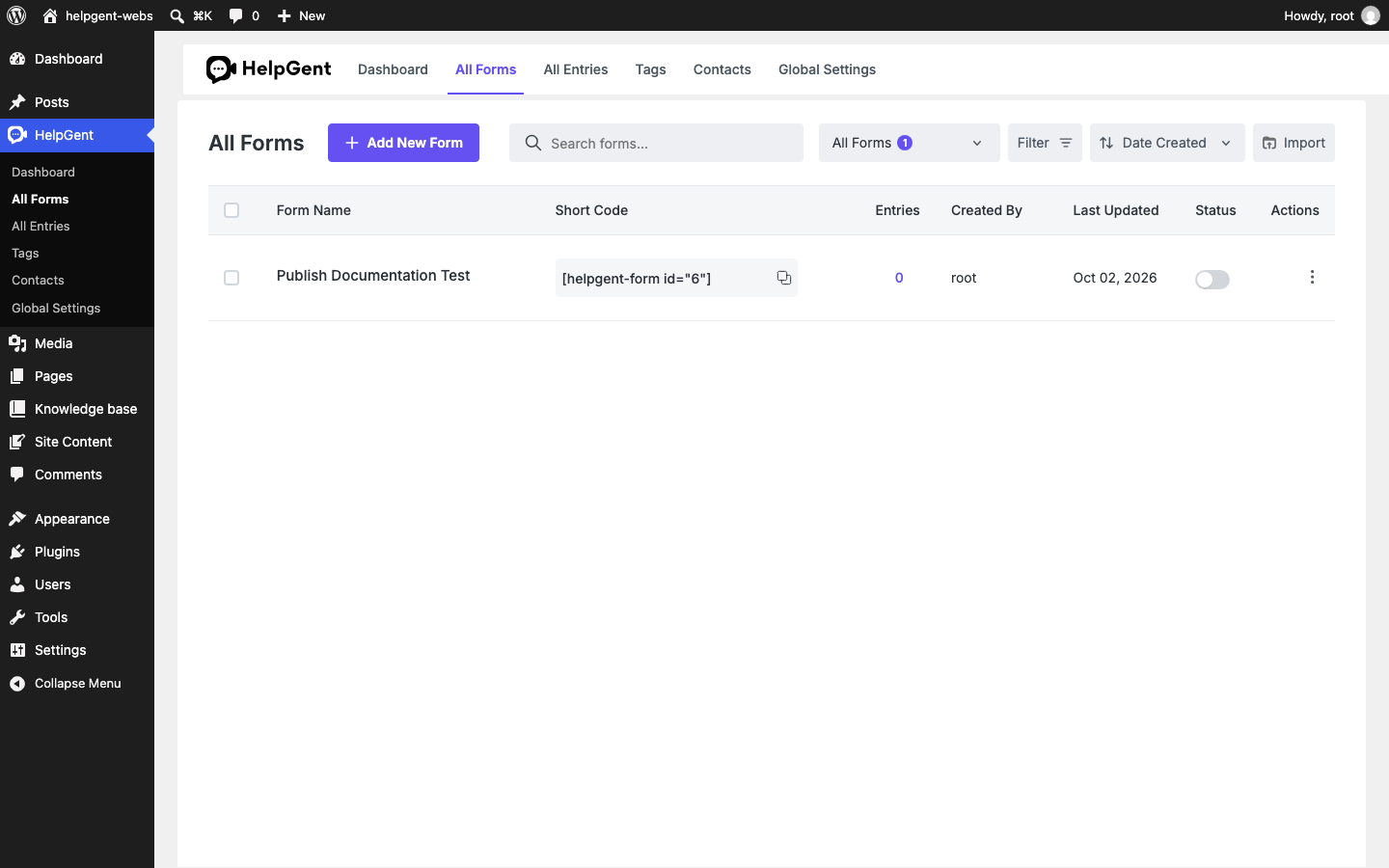
- Go to HelpGent → All Forms.
- Find the form you want to publish.
- In the Short Code column, select the copy icon next to the shortcode.
- HelpGent copies a shortcode in this format:
This form is currently unavailable.
Please try again later or contact the site owner.
Add the form to a page
- From WordPress, go to Pages → Add New, or edit an existing page.
- Select the + button to add a block.
- Search for and select the Shortcode block.
- Paste the HelpGent shortcode into the block.
- Save the page as a draft while you review it, or select Publish when it is ready for visitors.
You can use the same process in a WordPress post. The Shortcode block keeps the form connected to the HelpGent form you selected, so visitors see the current published version.
Verify the page
- Open the page on the frontend.
- Confirm that the HelpGent Welcome screen appears inside the page.
- Select Let’s Get Started and move through the form.
- Check the page on desktop and mobile widths.
For a direct URL or an embedded form with additional display options, see Use Shortcodes and Direct Links.