Review and Reply to Video Responses
HelpGent collects submitted conversations in All Entries. This is where you can find a visitor’s response, review the context around it, play attached media, and send a follow-up when more information is needed.
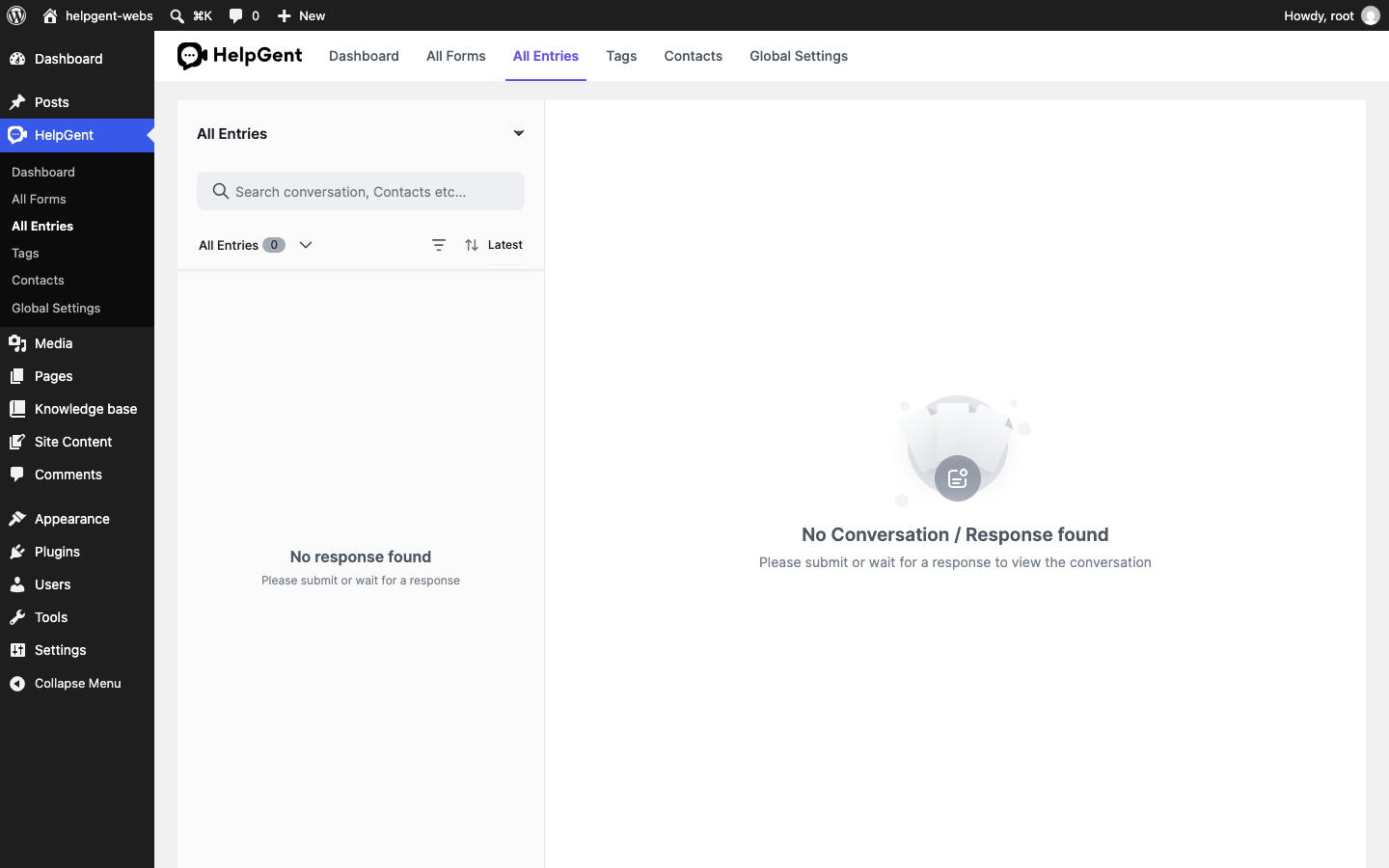
Open the response inbox
- From WordPress, go to HelpGent → All Entries.
- Use the form selector at the top of the list when you want to view responses for a specific form.
- Use the search box to find a conversation or contact.
- Use the filter and sort controls to narrow the list or change the order. Latest is useful when you are checking for new submissions.
- Select a response from the left panel to open its conversation on the right.
Review a video response
When a response is available, open it from the list. The conversation view keeps the visitor’s answers together so you can understand the request before replying.
- Text answers: Read the written response and any details collected on earlier screens.
- Video messages: Use the media player to watch the recording. Pause, replay, and review the request before taking action.
- Voice messages: Play the audio response and note the required follow-up.
- Screen recordings: Watch the recording while following the visitor’s steps on screen.
Reply to the visitor
- Keep the conversation open and review the response once more.
- Use the reply composer at the bottom of the conversation.
- Choose the available reply format—text, voice, video, or another supported media response—based on what will be clearest for the visitor.
- Preview the response when HelpGent provides a media preview. If you need to change it, cancel the preview and record or select the response again.
- Select Send and wait for the sending state to finish before closing the page.
Use a clear follow-up
For support requests, confirm what you understood and name the next step. For project requirements, repeat the key deliverables and ask for only the missing information. For applications or assessments, tell the participant what happens next and when they should expect an update.
If the inbox is empty
An empty All Entries screen is normal when no response has been submitted yet, when you are viewing the wrong form, or when a response is still being completed. Confirm that the form is published, open the public link in a private window, submit a test response, and refresh the inbox. If the response still does not appear, see Troubleshoot Video Recording and Uploads.
Privacy reminder: Video and screen recordings may contain personal or confidential information. Limit access to the WordPress site and avoid asking visitors to display passwords, payment information, or private customer data.