Publish and Share Your Interactive Form
When the form works as expected in preview, publish it and choose the sharing method that fits your site. HelpGent provides a direct link, a shortcode option, and a floating form option from the Share tab.
Publish the form
- Open the form in the HelpGent builder.
- Use the preview control to test the Welcome screen, every response screen, and the End screen.
- Select Publish in the top-right corner.
- Wait for the success notice confirming that the form has been published.
Publishing makes the form available at its public route. You can still return to the builder later to change the questions, response types, design, or settings.
Choose a sharing method
- Open the form’s Share tab.
- Select the method you want from the left panel.
- Copy the link, shortcode, or embed code shown on the right, then add it to the place where visitors should start the form.
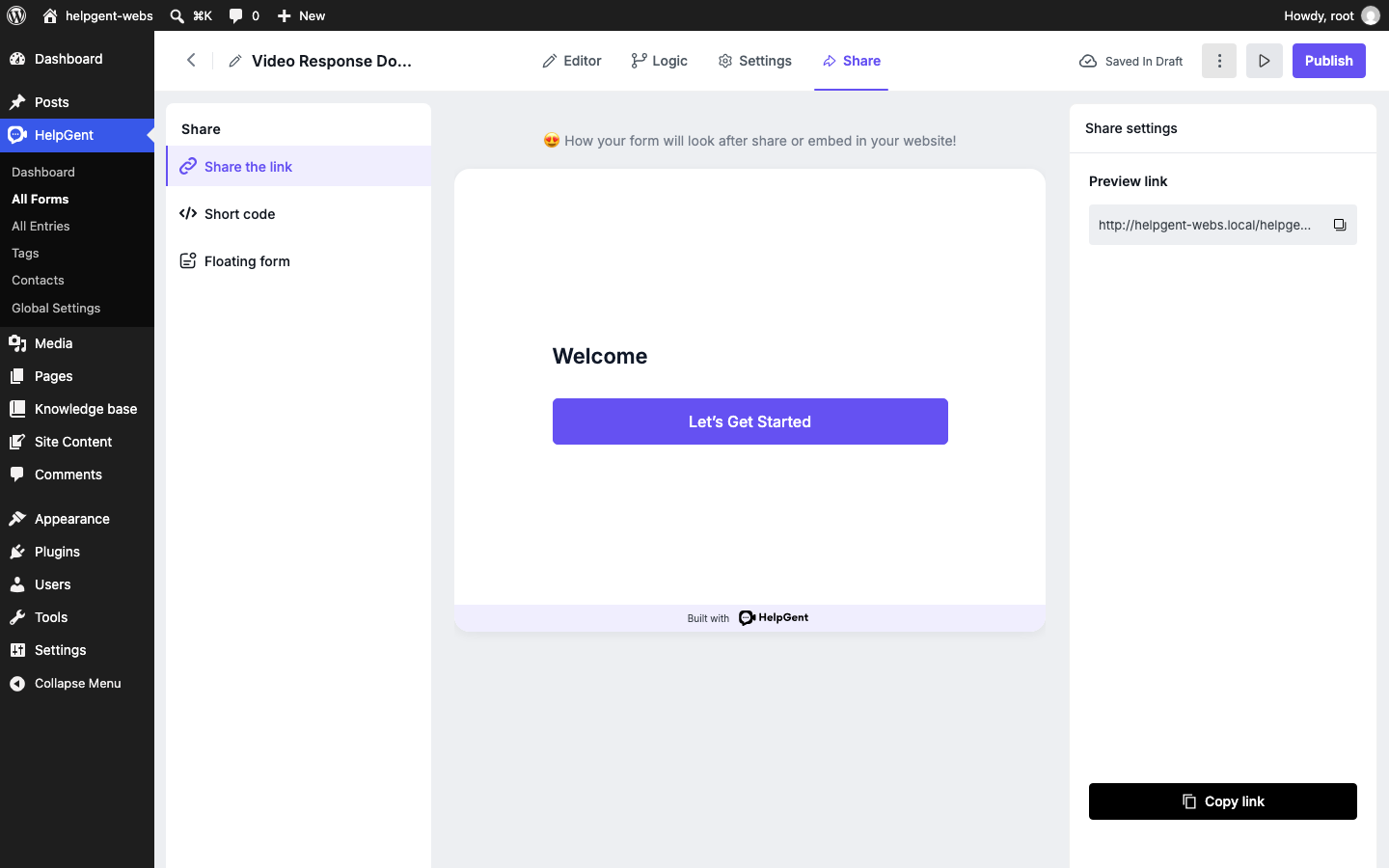
Share the link
Use Share the link when you want to send the form by email, chat, social media, or a button on another website. Copy the Preview link or use Copy link, then open the link in a private browser window to check the visitor experience.
Use Short code
Use Short code when the form should appear inside a WordPress page or post. Copy the shortcode shown by HelpGent and paste it into a Shortcode block or the editor area supported by your theme.
Use Floating form
Use Floating form when you want the form to open from a floating control instead of taking up space in the page content. Review the available floating-form options, save them, and check the result on both desktop and mobile.
Test the published form
- Open the public link while logged out, or use a private browser window.
- Confirm that the Welcome screen and call-to-action are clear.
- Choose Video Message and check that Record Video and Upload Video are available when enabled.
- Check that the form fits the page and that the controls are easy to use on a phone.
- Submit a small test response before sending the link to customers, applicants, or clients.
If you change the form after publishing, open the public link again and repeat the most important test. This prevents an old browser tab or cached page from hiding a recent change.
Once visitors begin responding, use Review and Reply to Video Responses to work from the HelpGent inbox.