Add Video, Voice, and Screen Recording
HelpGent’s Open Ended screen lets visitors choose how they want to respond. You can accept a written message, a webcam video, an audio message, or a screen recording with narration from the same step.
Enable the response types
- Open the form from HelpGent → All Forms and select Editor.
- Select an existing Open Ended screen, or add one from Add Element → Open Ended.
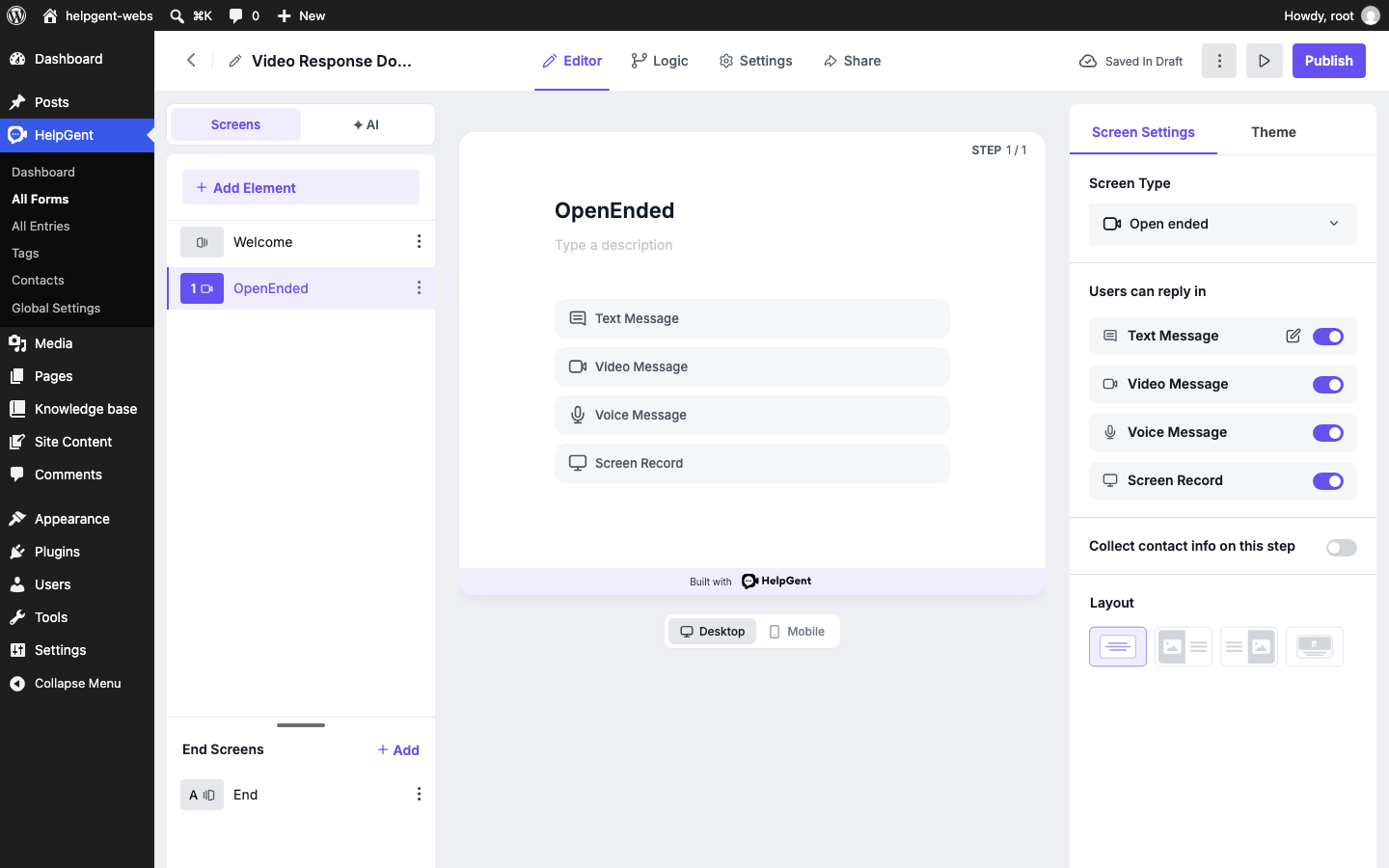
- In the right-hand Screen Settings panel, find Users can reply in.
- Turn on the response types you want to offer. Turn off options that do not fit your workflow.
- Preview the screen and save your changes.
What each response type does
| Option | What visitors can do | Useful for |
|---|---|---|
| Text Message | Type a written response. | Short explanations, names, links, and details that do not need media. |
| Video Message | Record a webcam video or upload a video file. | Project requirements, product questions, applications, and support issues. |
| Voice Message | Record an audio response using the visitor’s microphone. | Quick explanations when video is not necessary. |
| Screen Record | Record the visitor’s screen and narration. | Bug reports, walkthroughs, and “show me what happened” support requests. |
Plan note: Screen recording and some recording limits may depend on your HelpGent plan. If Screen Record is not available in the builder, verify that HelpGent Pro is installed and its license is active.
What visitors see
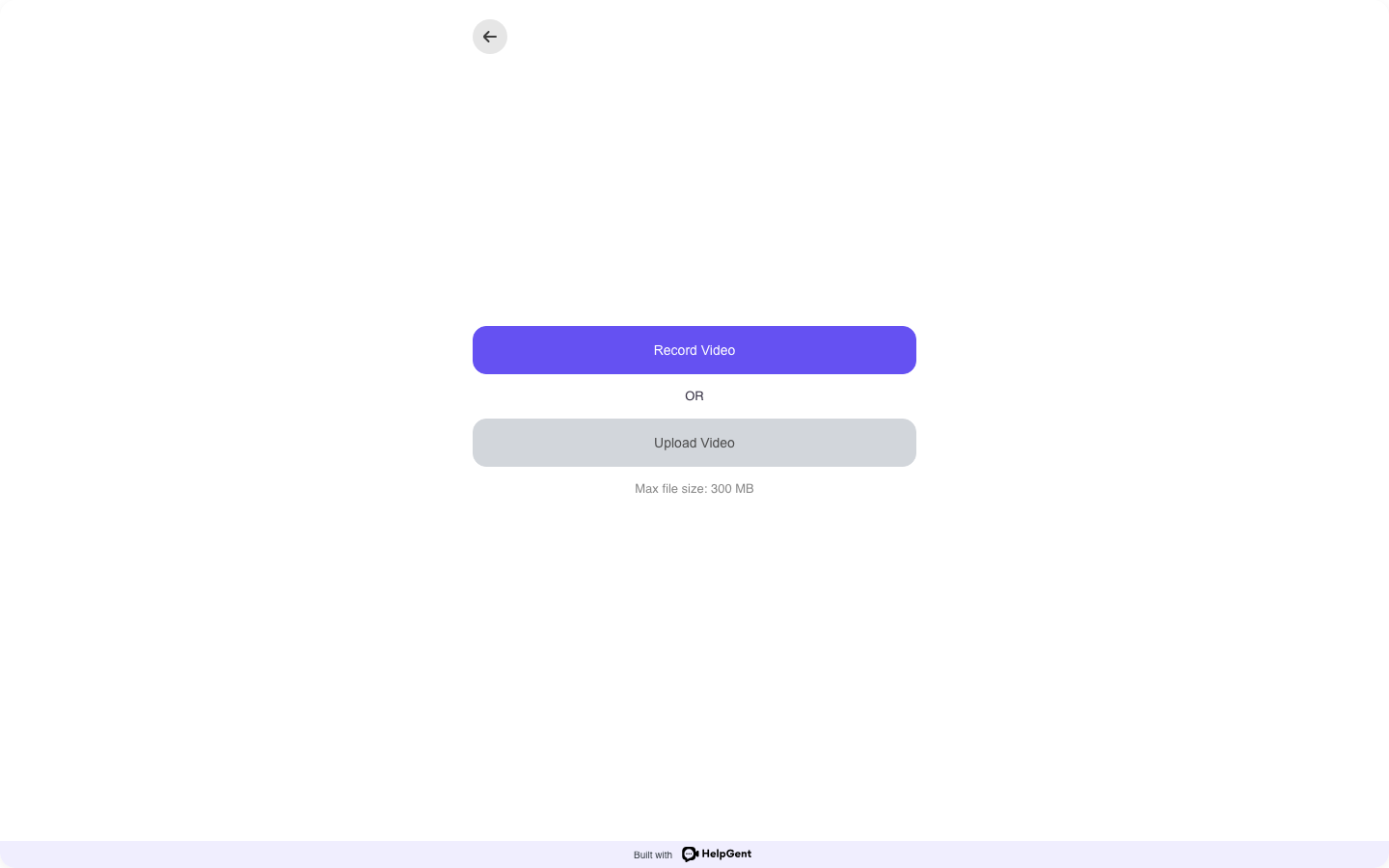
When a visitor chooses Video Message, HelpGent provides two paths: Record Video for a new recording and Upload Video for an existing file. The upload screen also shows the current maximum file-size message for that form.
Allow camera and microphone access
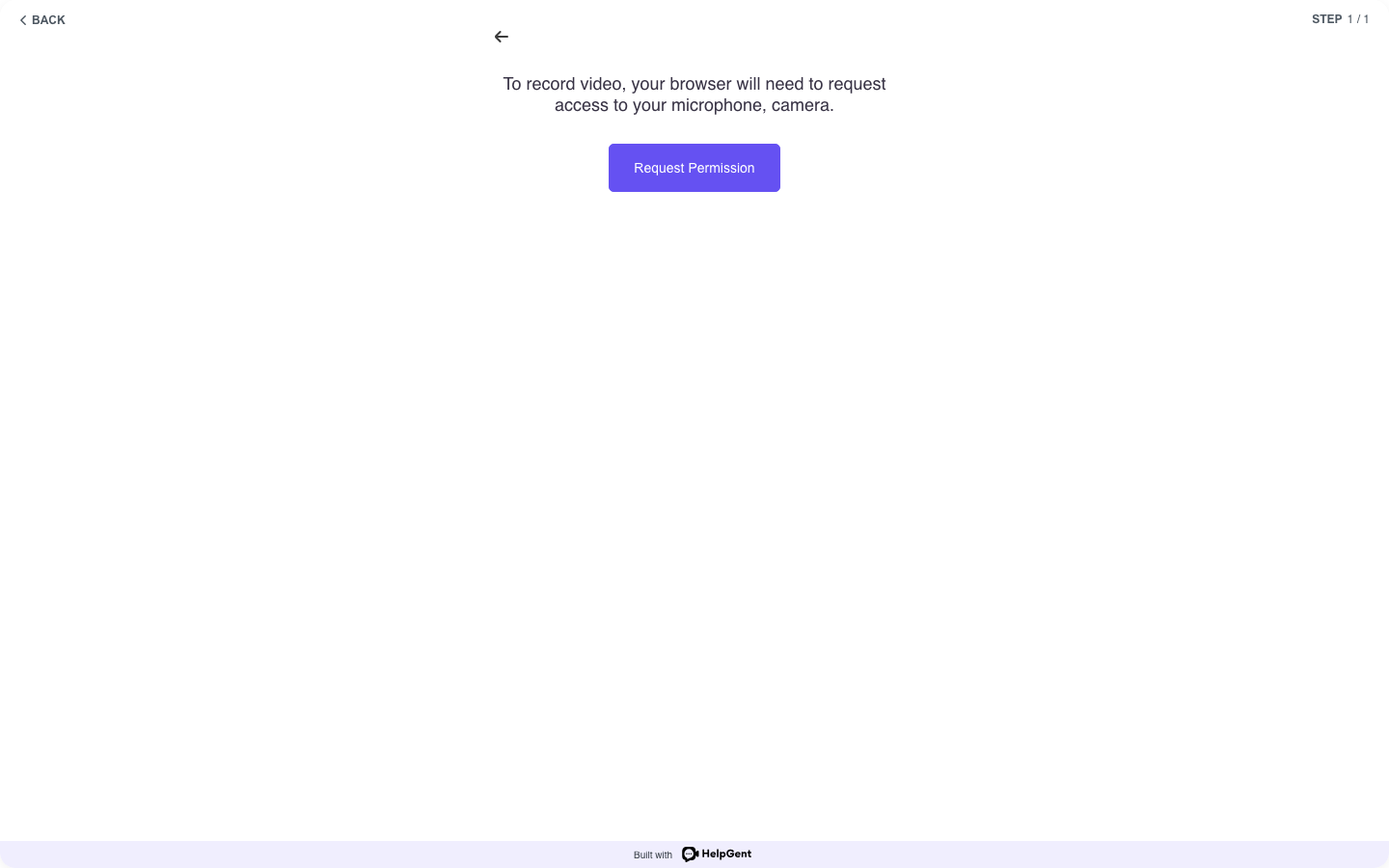
The first recording attempt may show a permission screen. The visitor should select Request Permission and allow the browser to use the required devices. Video recording needs both a camera and a microphone; voice recording needs a microphone. Screen recording may also ask the visitor to choose which screen, window, or tab to share.
Make recording easier for visitors
- Use a short instruction above the response control, such as “Record a 60-second walkthrough of the issue.”
- Ask visitors to test their camera and microphone before they start.
- Recommend a quiet, well-lit space for video and a quiet space for voice.
- For screen recordings, ask visitors to close private tabs and hide sensitive information first.
- Keep a text response enabled as a fallback when a visitor cannot record.
After the response types are configured, continue with Publish and Share Your Interactive Form.