Create Quizzes
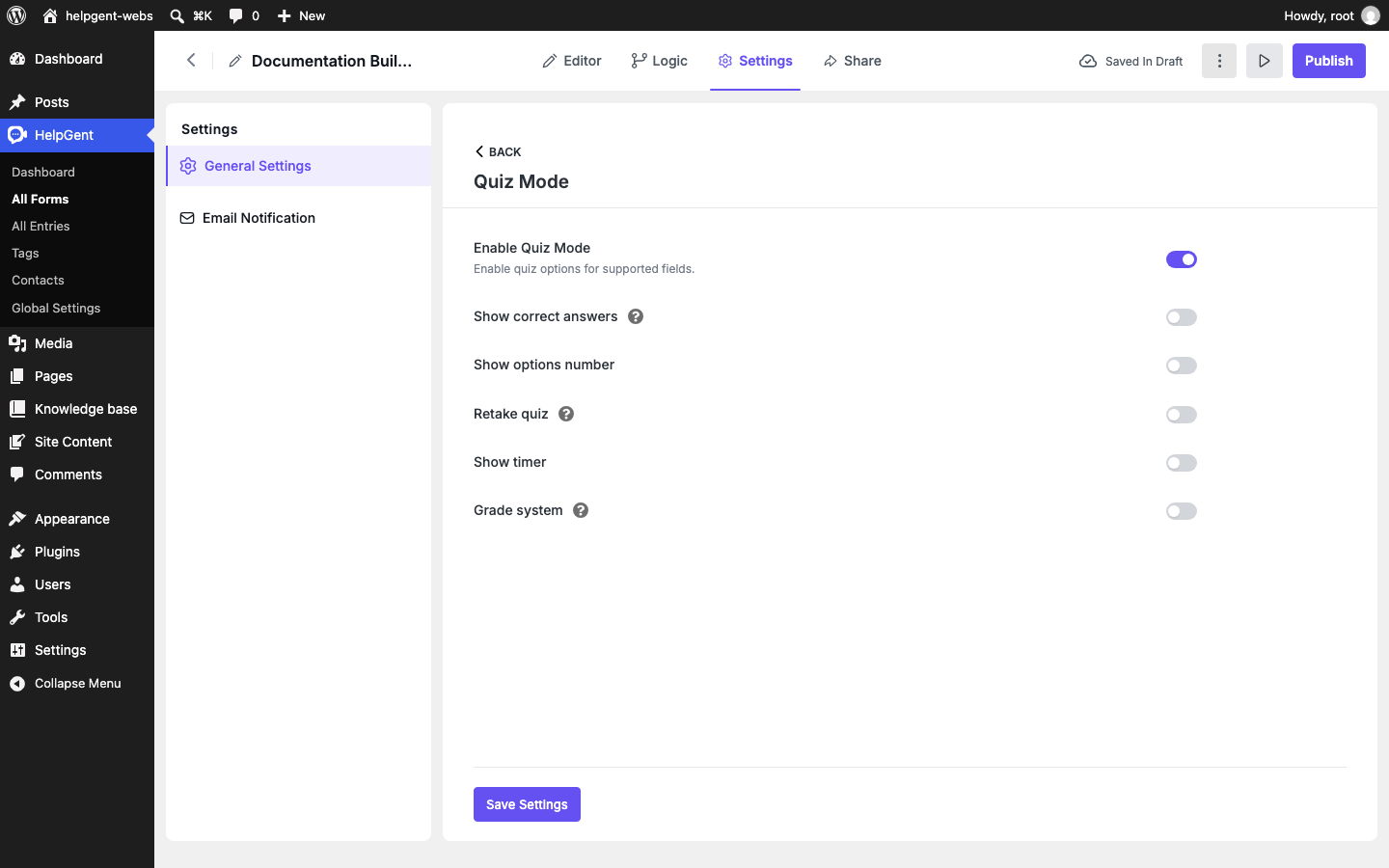
Quiz Mode turns supported HelpGent response screens into scored questions. You can mark correct answers, assign points, show feedback, allow retakes, and—where available—add timers and a grade system.
Enable Quiz Mode
- Open the form in the HelpGent builder.
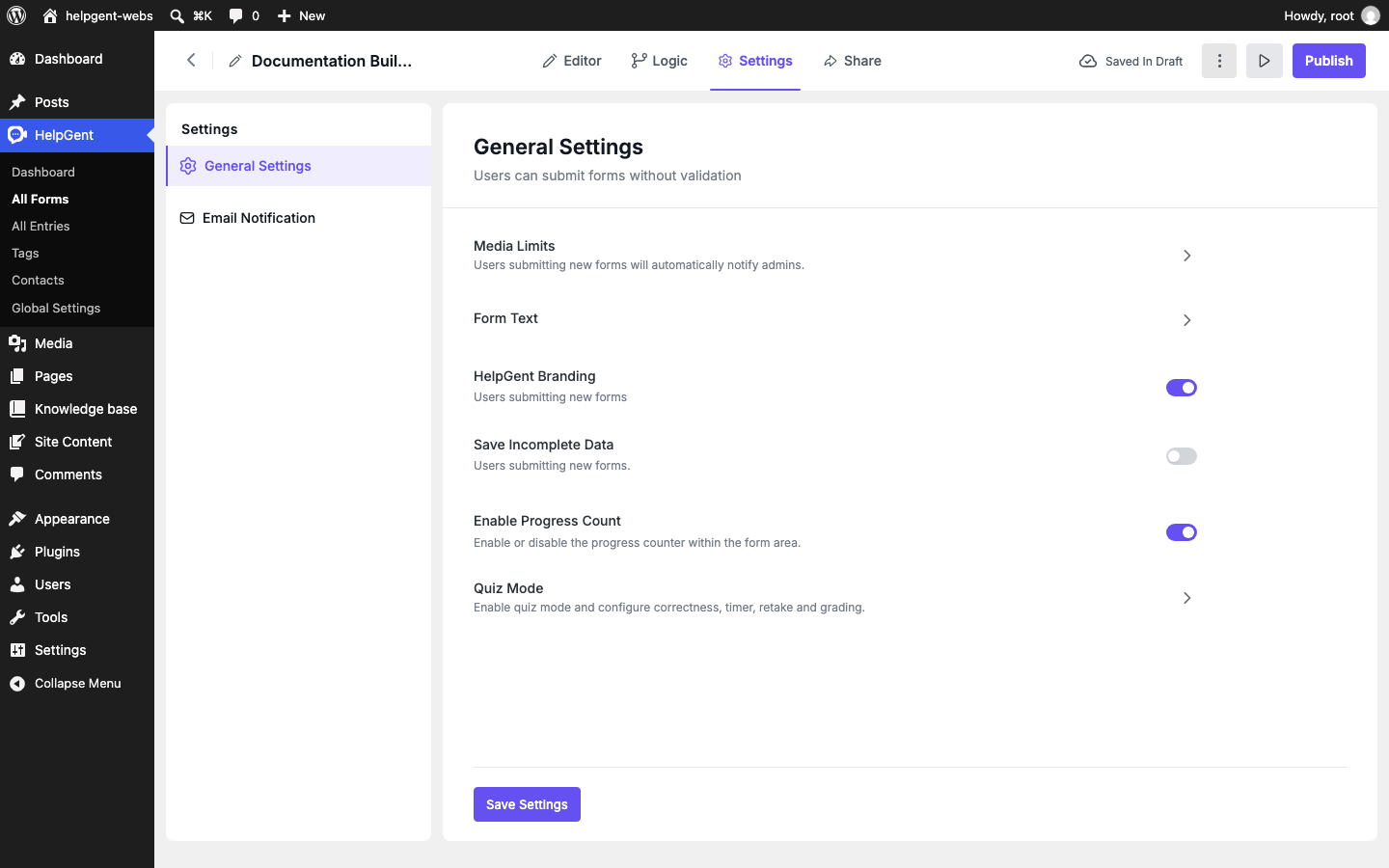
- Select Settings → General Settings.
- Open Quiz Mode.
- Turn on Enable Quiz Mode.
- Configure the options you need and select Save Settings.
Supported quiz question types
Quiz Mode evaluates these element types: Single Select, Dropdown, Yes No, Number, Multi Select, Picture Select, Short text, Long text, and File Upload. Multi Select and Picture Select are Pro elements.
There is no separate “Quiz” element to add. Add one of the supported elements, then configure its quiz answer settings.
Mark answers and points
- Return to Editor and select a supported question screen.
- Open the element’s options in Screen Settings.
- For choice-based elements, mark the correct option or options and enter the Points value for each one.
- For short text, long text, or file-upload questions, plan to review answers manually when the question cannot be evaluated automatically.
- Repeat for each quiz question, then preview the form and submit a test response.
Choose the quiz behavior
| Option | What users experience |
|---|---|
| Show correct answers | Shows the correct answer after submission. |
| Show options number | Displays option numbers in choice-based questions. |
| Retake quiz | Allows users to attempt the quiz again. |
| Show timer | Displays a timer when the timer feature is available in the plan. |
| Quiz Time Limit | Sets a time limit for the complete quiz when the timer is enabled. |
| Question Time Limit | Sets a time limit for an individual question when the timer is enabled. |
| Grade system | Maps score ranges to grades when the grading feature is available in the plan. |
Test a quiz before publishing
- Submit a response with the correct answer and confirm that the points increase.
- Submit an incorrect answer and check the feedback behavior.
- Test a retake if that option is enabled.
- Confirm that the timer uses the expected limit.
- If you use manual questions, check how unanswered or pending answers appear to the administrator.
For the field-by-field options available in the builder, see Form Elements Reference.