Use Conditional Logic
Conditional logic changes the path a user follows based on an answer. It is useful for qualification forms, support triage, applications, and any flow where every user should not see the same questions.
How routing works
Every form starts with a normal screen sequence. If you do not add a rule, HelpGent follows that sequence. A logic rule adds an exception: when an answer matches a condition, the user is sent to the screen you choose. All other answers can continue to a fallback screen.
Open the logic canvas
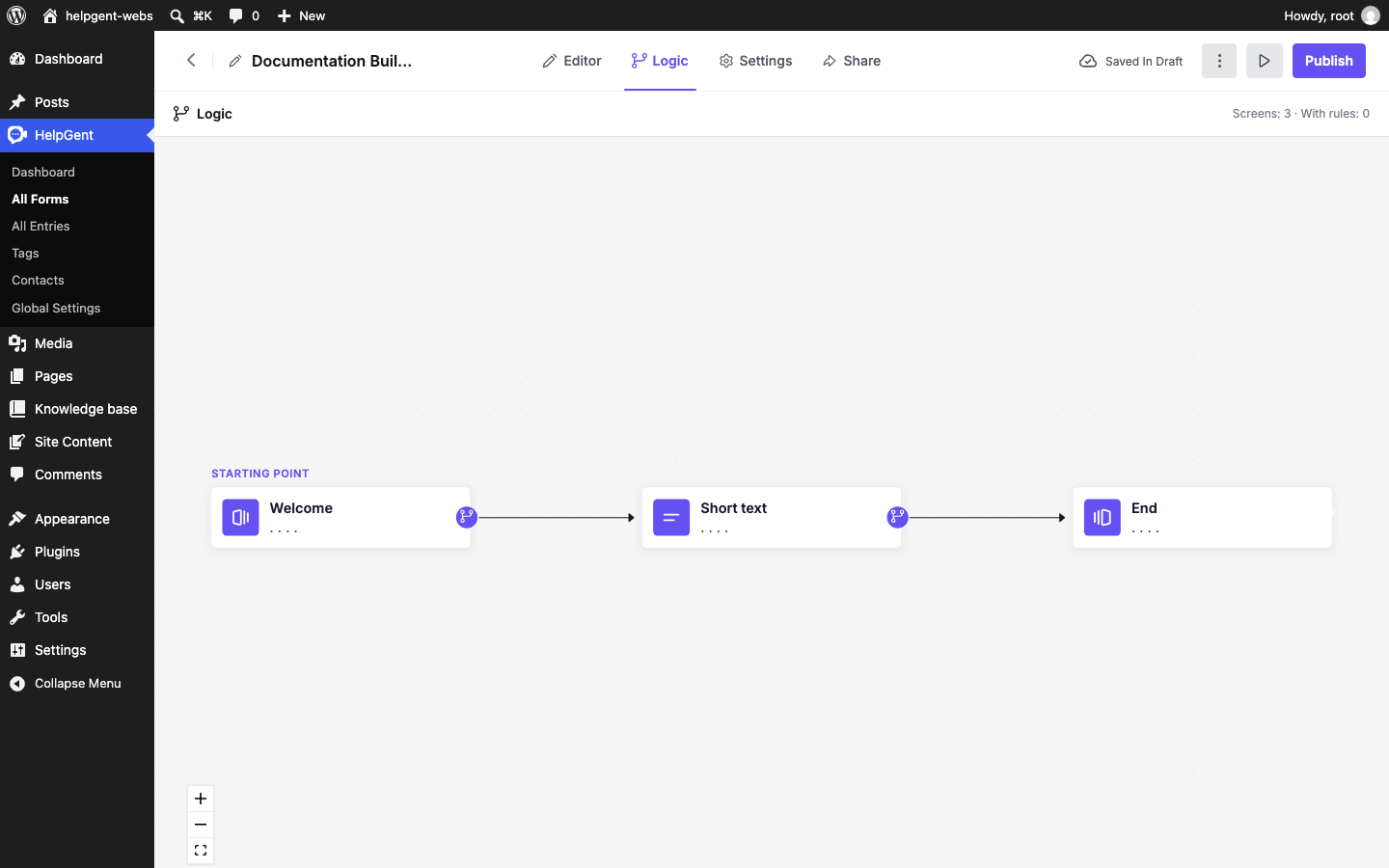
- Open your form and select Logic in the top navigation.
- Review the screen cards connected across the canvas.
- Select the purple logic icon on the screen where the decision should be made.
- Use the logic panel to review the current target, or select Add logic to create a rule.
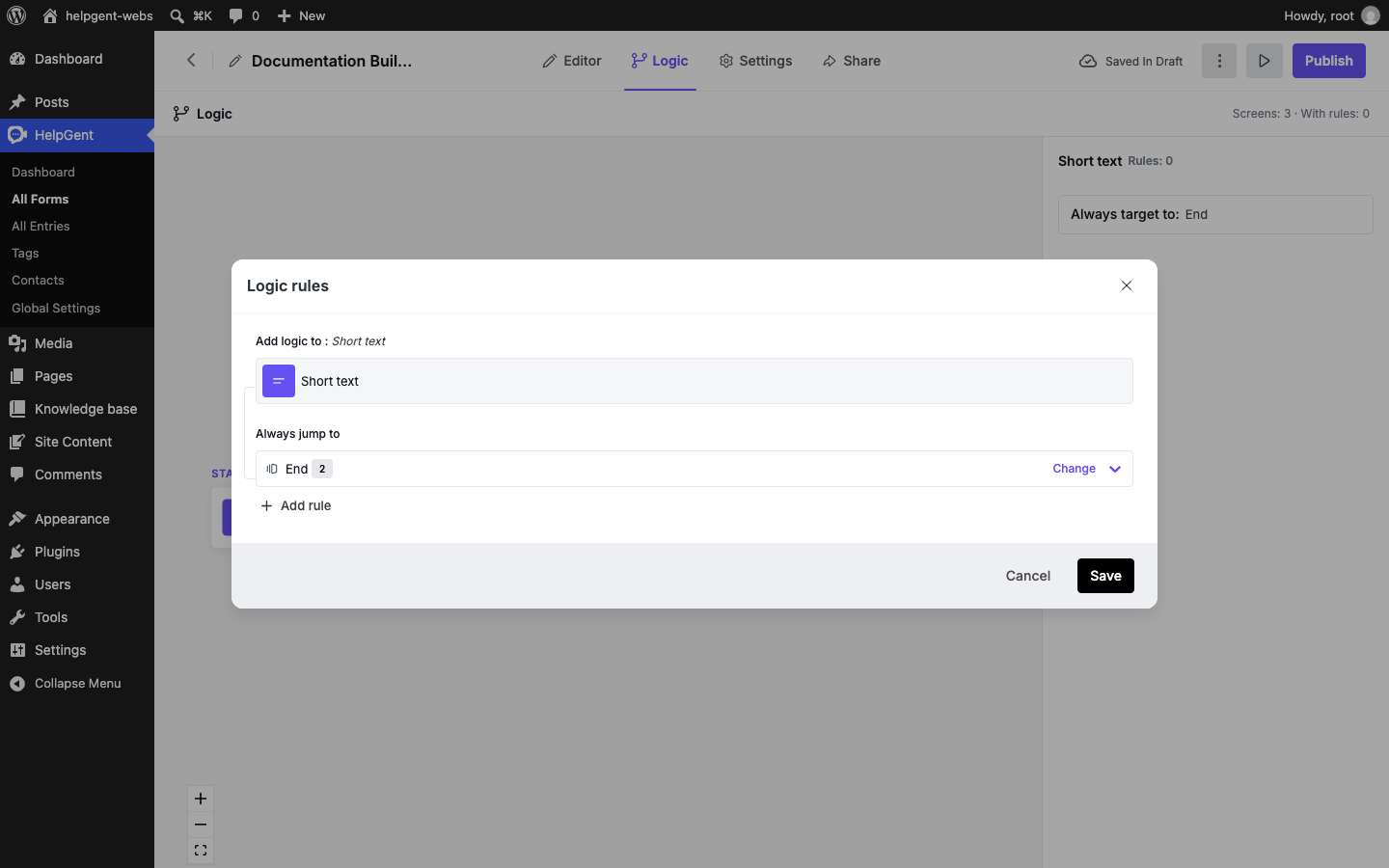
Review the logic rules dialog
The first view shows the screen you are configuring, its current Always jump to target, and an Add rule action. Change lets you choose a different target screen. The default target is used when no conditional rule matches.
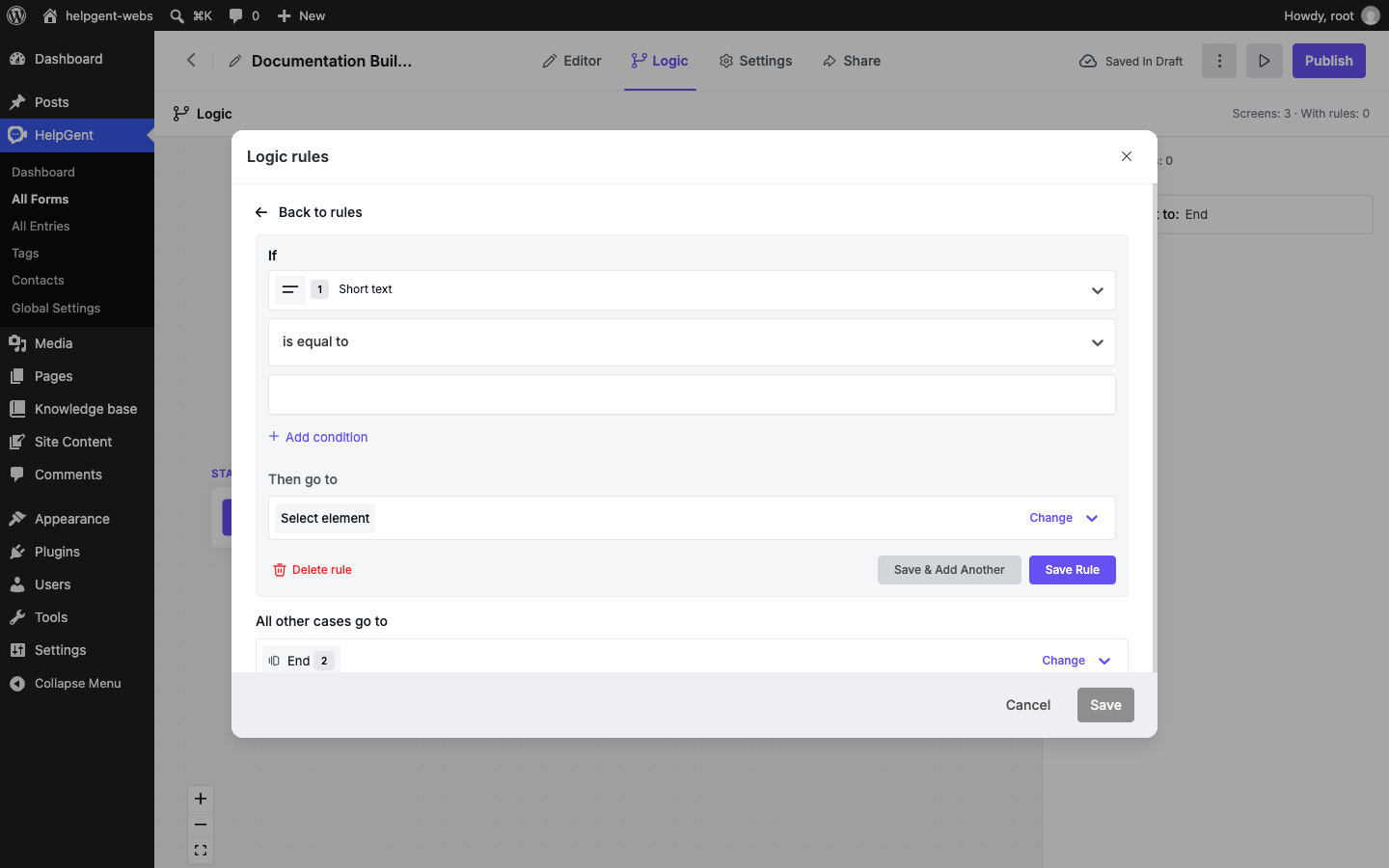
Create a rule
- Select Add rule.
- Under If, choose the screen or element whose answer should be checked.
- Choose an operator such as is equal to and enter or select the value to compare.
- Select Add condition if the route should depend on more than one answer.
- Under Then go to, select Change and choose the destination screen.
- Review All other cases go to and choose the fallback destination.
- Select Save Rule. Use Save & Add Another when the same screen needs another branch.
Example: route a support request
Add a Single Select screen titled “What do you need help with?” with options such as “Technical issue,” “Billing question,” and “Product guidance.” Create one rule for each option and send the user to the matching follow-up screen. Set the fallback to a general support screen so no response is lost.
Test every path
- Submit the answer that should match each rule.
- Submit an answer that should use the fallback.
- Check that required screens do not create a dead end.
- Test the form on mobile as well as desktop.
- After changing a screen name or deleting a screen, reopen Logic and verify each destination still makes sense.