Add Screens and Elements
Each question, message, or response step in HelpGent is a screen. You build a form by adding screens, choosing the right element for each job, and configuring that element for your audience.
Before you add screens
Open the form from HelpGent → All Forms and select the Editor tab. A new form already includes a Welcome screen and an End screen. Add your questions between them.
Add an element as a screen
- In the left builder panel, make sure Screens is selected.
- Select Add Element.
- Browse the grouped library, or use the available search/filter controls to find an element.
- Select an element such as Short text, Dropdown, Live chat, or Open Ended.
- Complete the element settings in the right panel, then select another screen to continue building.
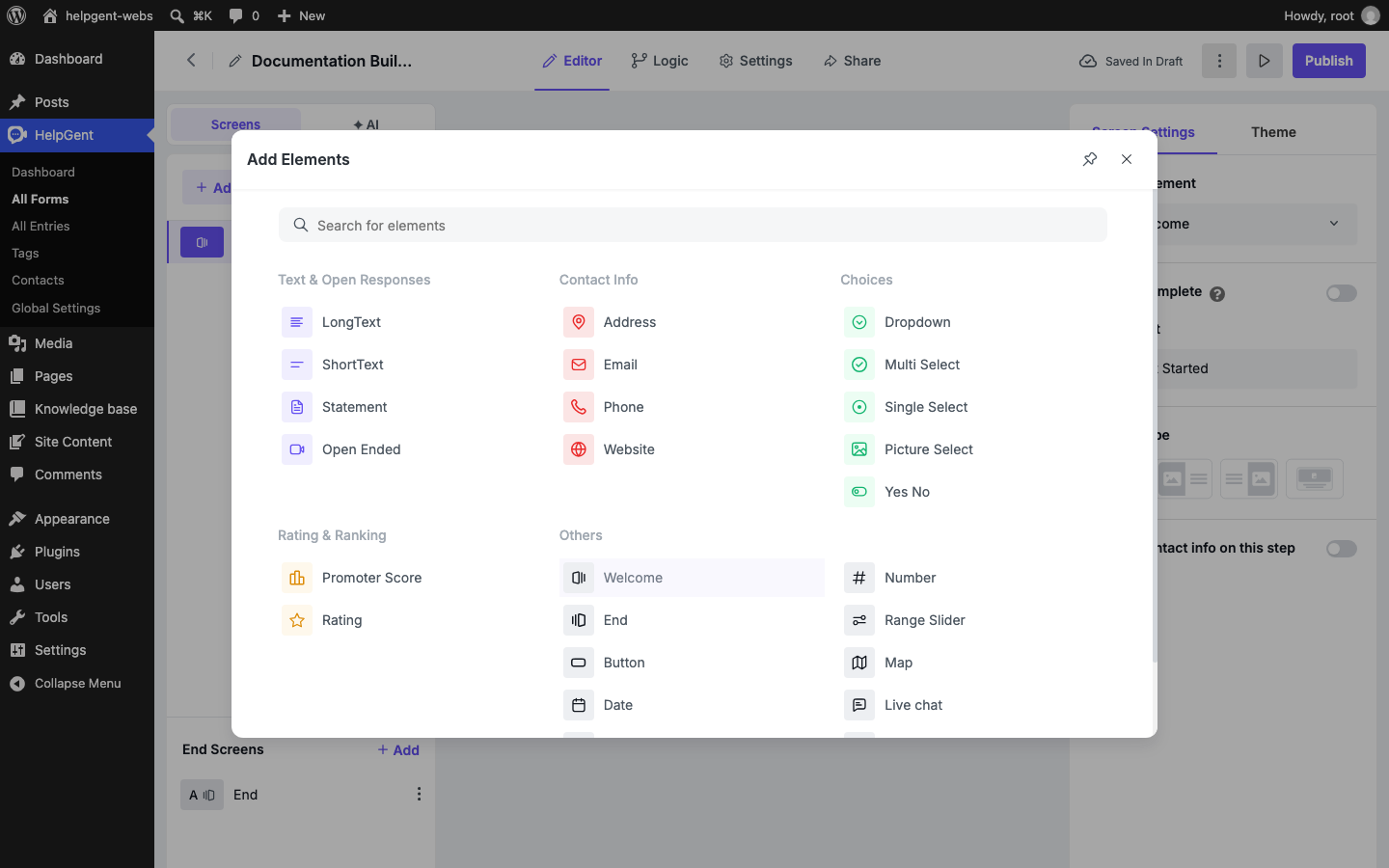
Choose the right group
| Library group | Use it for |
|---|---|
| Text & Open Responses | Questions that need a written answer, a statement, or an open-ended video, voice, text, or screen response. |
| Contact Info | Basic contact details such as an email address, phone number, website, or address. |
| Choices | Questions with one answer, several answers, a dropdown, a picture choice, or a Yes/No response. |
| Rating & Ranking | Opinion, satisfaction, recommendation, or star-rating questions. |
| Others | Welcome and End screens, buttons, dates, times, uploads, numbers, maps, chat, privacy consent, and spam protection. |
Add an end screen
Use End Screens → Add when you need an additional completion screen. Multiple end screens are useful when different answers should lead to different messages, follow-up instructions, or calls to action. Select an end screen from the list to edit its content and behavior.
Configure the selected screen
After you add an element, select its screen in the left panel. The right panel changes to that element’s controls. Common controls include:
- Change Element — replace the current element type without rebuilding the whole form.
- Required — prevent the user from continuing until an answer is provided, when the element supports this option.
- Options — add or edit the choices shown to the user.
- Layout — choose how text and media are arranged when the element supports multiple layouts.
- Collect contact info on this step — request contact details alongside the response when available.
Keep the flow easy to answer
- Ask one clear question per screen.
- Use Short text for brief answers and Long text for explanations.
- Use a choice element when you already know the likely answers.
- Use Open Ended when a user may explain something better through video or voice.
- Keep required questions limited to information you genuinely need.
For a complete list of available elements and what each one collects, see Form Elements Reference.