Form Builder Overview
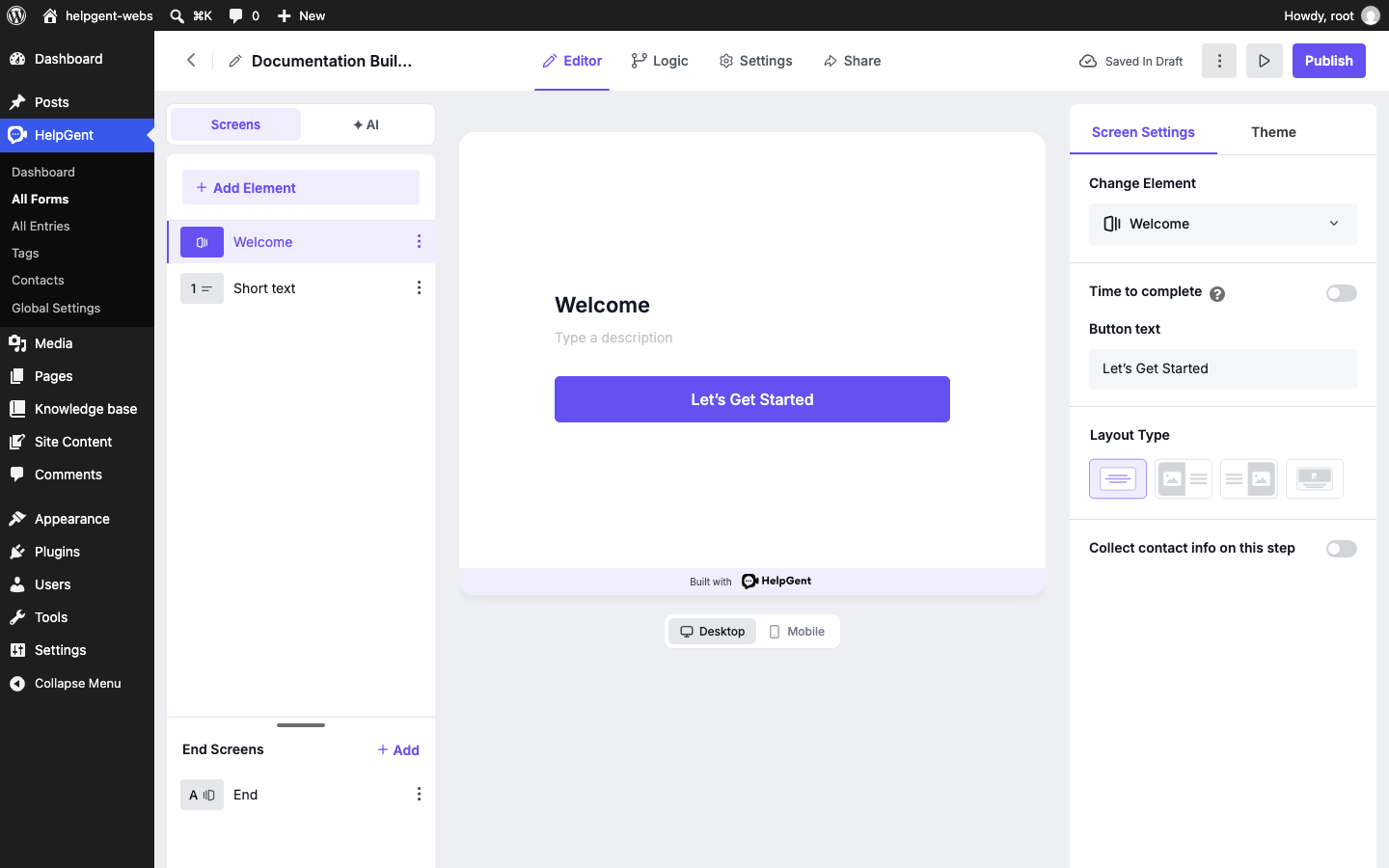
HelpGent form editor showing the Screens list, form preview, and Screen Settings panel.
The HelpGent form builder is where you turn a simple idea into an interactive conversation. You can add one screen at a time, collect text or media responses, route people through different paths, and preview the experience before publishing it.
Open the form builder
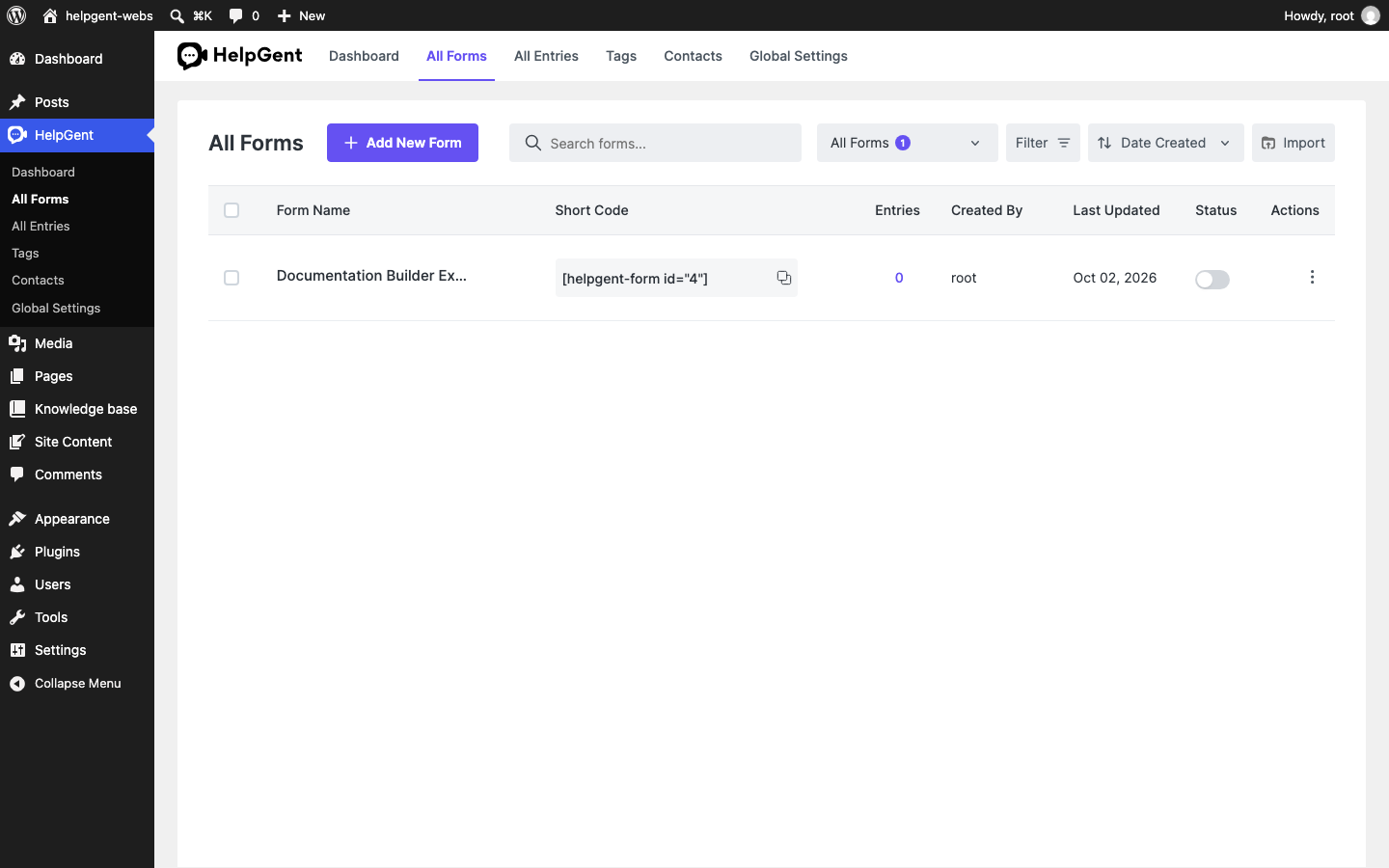
- From your WordPress admin area, go to HelpGent → All Forms.
- Open an existing form, or select Add New to start a form.
- Choose Start from scratch, Use a template, or Create with AI when the creation dialog appears.
- Give the form a name and select Create Form.
Understand the builder layout
The builder is divided into focused areas so you can build the conversation without losing sight of the final experience.
| Area | What it does |
|---|---|
| Editor | Build the form by adding screens and configuring each element. |
| Logic | Create rules that send users to different screens based on their answers. |
| Settings | Configure form-wide behavior, text, notifications, progress, and quiz options. |
| Share | Open the form’s publishing and sharing options after the form is ready. |
| Screens / AI | Screens lists your form steps. AI provides the builder’s AI-assisted tools when available. |
| Add Element | Opens the element library. Choose an element to add a new screen to the form. |
| Preview | Shows the current form in the center of the builder. Use Desktop or Mobile below the preview to check both layouts. |
| Screen Settings / Theme | Screen Settings controls the selected screen. Theme controls the form’s global appearance. |
Save and publish status
HelpGent saves changes as you work and shows the current state near the top-right of the builder. A new form remains in Saved In Draft until you publish it. Use Publish only after testing the flow, checking the mobile preview, and confirming that every required screen is ready.
A simple building order
- Start with a Welcome screen that explains what the user should do.
- Add the question or response screens with Add Element.
- Review the End screen and add any routing rules in Logic.
- Adjust form-wide behavior in Settings, then use Share to publish the finished form.
Next step
Learn how to build the flow itself in Add Screens and Elements.